Operations Manual
Inventory, Assets & Rotable — daily workflow, scenarios and step-by-step procedures for the back-of-house and front-line teams of Pier 9 Hotel & Resort, Sydney. One platform, three business domains, shared Item Master, common audit trail.
Contents
- 1Introduction04
- 1.1 Purpose · 1.2 Scope · 1.3 Audience · 1.4 How to read
- 2System overview05
- 2.1 The three domains · 2.2 Shared backbone · 2.3 Work centres · 2.4 Compliance scope · 2.5 Permissions matrix
- 3Core concepts07
- 3.1 Location hierarchy · 3.2 Item Master & multi-UoM · 3.3 Batches & FEFO · 3.4 Movement & event ledger · 3.5 Costing · 3.6 ROP & safety stock · 3.7 Asset identity · 3.8 Rotable circulation · 3.9 Item class & dynamic detail · 3.10 State machines
- 4Desktop modules — back-of-house10
- 4.1 Workspace · 4.2 Items · 4.3 Operations · 4.4 Work centres · 4.5 Domains (Consumables · Assets · Rotable) · 4.6 Reports & compliance
- 5Mobile modules — front-line38
- 5.1 Housekeeping Attendant · 5.2 Public Area Cleaner · 5.3 Maintenance Technician · 5.4 Receiving Clerk · 5.5 Auditor / Counter · 5.6 Universal Scanner
- 6Standard operating procedures44
- 6.1 Daily opening · 6.2 Cycle count · 6.3 Receiving exception · 6.4 Expiry write-off · 6.5 Cross-property transfer · 6.6 Cross-domain PO · 6.7 Work-order execution · 6.8 Floor replenishment · 6.9 Linen count & loss · 6.10 Month-end close
- 7Compliance & audit48
- 7.1 AASB 102 · 7.2 WHS Register · 7.3 AASB 116 · 7.4 USALI Schedule 5 · 7.5 Audit trail · 7.6 GST · 7.7 USALI mapping
- AAppendix52
- A.1 Glossary · A.2 State machines · A.3 Status reference · A.4 Keyboard shortcuts · A.5 Change log · A.6 Cross-domain ledger sample
1 · Introduction
1.1 Purpose
This manual is the single source of truth for operating Steward — the hotel operations platform that runs the consumables inventory, owned assets and rotable pool of Pier 9 Hotel & Resort, Sydney. It documents what each screen is for, when to use it, and how to use it step by step. It is written for daily reference, training of new starters and external audit support, and is the authoritative source if a screen and its documentation disagree.
1.2 Scope
The manual covers the full Steward platform across three business domains, five cross-domain work centres and one mobile companion:
- Consumables domain — sixteen back-of-house screens for single-use goods that are expensed on issue under AASB 102.
- Assets domain — fourteen screens for owned, individually-tagged property, plant and equipment under AASB 116, including loanables, tool crib, uniforms and the CMMS work-order centre.
- Rotable domain — twelve screens for the linen, china/glass/silver and uniform pools that circulate through the three-par cycle and amortise under USALI Schedule 5.
- Work centres — Procurement Hub, Engineering Workbench, Floor Operations, Room 360 and Finance Close — each composes screens from two or three domains so a single role can finish a single piece of work in one place.
- Mobile — one companion app with persona-routed home screens for housekeeping attendants, public-area cleaners, maintenance technicians, receiving clerks and physical-count auditors; a single universal scanner recognises every SKU, asset tag, linen tag, PO line and work-order reference.
The three domains share one Item Master, one Locations tree, one Suppliers register, one append-only Movement ledger, one Approvals queue and one Activity feed. They differ in state machine, KPI set and accounting treatment, not in plumbing.
1.3 Audience
The screens, scenarios and step-by-step procedures in this manual are written for the following roles. The "Primary screens" column lists where the role spends most of its day; every role also has read access to the unified Dashboard and Reports.
| Role | Primary screens | Frequency |
|---|---|---|
| General Manager · Owner | Unified Dashboard · Reports · Approvals · Compliance Centre | Daily / Weekly |
| Financial Controller | Movements · Period Close Pack · Depreciation · OS&E Amortisation · Reports | Daily / Month-end |
| Executive Housekeeper | Floor Operations · Item Master · Count · Chemical Register · Par Configuration | Daily |
| Housekeeping Supervisor | Floor Operations · Transfer · Count · Mobile: Housekeeper Home | Per shift |
| Room Attendant | Mobile: Housekeeper Home · Room Card · Universal Scanner | Per shift |
| Chief Engineer · Maintenance Technician | Engineering Workbench · Work Orders · Asset Detail · Tool Crib · Mobile: Technician Home | Per task |
| Public Area Attendant | Mobile: PA Home · Universal Scanner · Adjust / Issue | Per shift |
| Front Office Manager | Room 360 · Loanable Pool · Approvals | Per shift |
| F&B Manager · Chief Steward | CGS Banquet · Par Configuration (CGS) · Floor Operations | Per service |
| Procurement Officer | Procurement Hub · Purchase Suggestions · PO · Suppliers · Vendor Reconciliation | Daily |
| Receiving Clerk | Receiving · Mobile: Receiving Home · Universal Scanner | Per delivery |
| WHS Officer | Chemical Register · Compliance Centre | Monthly · Audit |
| Internal / External Auditor | Movements · Asset Audit · Period Close Pack · Compliance Centre | Per cycle |
1.4 How to read this manual
Each screen entry follows the same shape: a one-line purpose, a meta block stating roles, frequency and linked screens, an annotated screenshot where one exists, a When to use list of scenarios, a numbered How to use walkthrough, and any applicable Tip or Caution. Where a screen drives a state machine, the states are drawn out as a pill row. Standard operating procedures in chapter 6 are recipes that compose multiple screens and follow a fixed shape — role, trigger, preconditions, steps, outcome, exceptions — so they can be lifted into induction and refresher training without further editing.
Stock Count, statuses as Submitted, system codes as SC-26-019, asset tags as ENG-CHL-0012, linen SKUs as LIN-BWL-70, and keystrokes as ⌘K. Domain is signalled by a one-letter chip — C Consumables · A Assets · R Rotable.2 · System overview
2.1 The three domains of Steward
Steward is one product organised into three business domains. Every back-of-house user works inside the same shell, the same sidebar, the same search and the same approval queue; the domain a screen belongs to changes the state machine, the KPI set and the accounting code, not the look or the navigation. The three-letter chip on every row tells the reader which domain a SKU, movement, alert or approval belongs to without forcing them to switch context.
| Domain | What it tracks | Defining trait | Accounting |
|---|---|---|---|
| Consumables C | Single-use goods — amenities, minibar food & beverage, chemicals, office and kitchen consumables | SKU + quantity + batch + expiry; expensed on issue | AASB 102 — Weighted Average (or FIFO on election) |
| Assets A | Owned, individually-tagged property, plant & equipment — engineering plant, IT, FF&E, loanables, tools, uniforms, master keys | Per-unit asset tag, custodian and condition; depreciated over useful life | AASB 116 — straight-line or reducing balance |
| Rotable R | Linen (sheets, towels, bath mats), china/glass/silver, uniforms and reusable soft goods that circulate through the three-par cycle | SKU + par level + circulation state (in use / in laundry / in storage); monthly loss attribution | USALI 11th Edition Schedule 5 — OS&E amortisation pool |
Where this manual refers to "the Consumables domain", "the Assets domain" or "the Rotable domain", it always means a body of operations and accounting rules inside Steward — not a separate product or installation.
2.2 Shared backbone
Six shared structures cut across all three domains. Every screen the user opens is either one of these structures or a domain-specific composition over them. These are the surfaces an auditor reviews first because they answer "where did this number come from?" without privileged access to the database.
| Backbone | What it provides | Where it surfaces |
|---|---|---|
| Item Master | One record per item, carrying item_class = CONSUMABLE / ASSET / ROTABLE. The detail page renders tabs dynamically by class. | Items → Item Master, item-master-detail.html?id=… |
| Locations tree | A single hierarchy — Property → Building → Floor → Room / Pantry / Store / Trolley — referenced by every movement, custody event and par state. | Items → Locations, Floor Operations, Room 360 |
| Suppliers register | One supplier card with ABN, GST status, MOQ, lead time, price lists and a rolling 90-day performance scorecard, shared by consumable POs, asset acquisitions and rotable replenishment. | Items → Suppliers, Procurement Hub |
| Movement & event ledger | Append-only ledger of every quantity change, custody event and par transition. Cannot be edited; corrections post a counter-movement with reason code REVERSAL. | Operations → Movements, Custody Ledger, Linen Circulation |
| Approvals queue | One queue routes every threshold-gated approval — PO, count adjustment, transfer, write-off, capitalisation, disposal — to the right role under the matrix in §2.5. | Workspace → Approvals |
| Activity feed | One feed of recent events filterable by domain, role, screen and severity. Drives the "what happened in my watch?" question at handover. | Workspace → Activity Feed, Dashboard |
2.3 Work centres
Five composite screens collect work that would otherwise force a single role to jump between domains. Each work centre is a thin composition over the shared backbone — it owns no data of its own, only a layout, a filter set and an action set. A role can finish a complete piece of work in one place without losing context. Where a domain page is the right tool to study a topic in depth, a work centre is the right tool to complete a task end-to-end.
| Work centre | Primary role | What it composes | Why it cannot live in one domain |
|---|---|---|---|
| Procurement Hub | Procurement Officer | Purchase Suggestions (C+R) · Purchase Orders · GRN · Three-way match · Supplier scorecard | A single PO can mix consumable lines, asset capitalisation lines and rotable replenishment lines |
| Engineering Workbench | Maintenance Technician · Chief Engineer | Asset card · Work Order · MRO part pick (C) · Tool checkout (A) · Photo capture · Labour time | A repair needs both a part (Consumables) and a tool (Assets); splitting them across two modules wastes ~6 minutes per WO |
| Floor Operations | Executive Housekeeper · HK Supervisor | Floor tree · Consumable par gap (C) · 3-Par linen state (R) · Loanables in use on floor (A) · Replenish-floor action | A floor walk-through pulls all three domains; one click should generate the cross-domain transfer |
| Room 360 | Front Office Manager · HK Supervisor | Room amenity par (C) · Room-tagged assets (A) · Linen state for the room (R) · Today's cleaning + WO history | Resolving a guest issue ("the iron does not work") is a cross-domain conversation; the room is the natural anchor |
| Finance Close | Financial Controller | AASB 102 valuation (C) · AASB 116 depreciation (A) · USALI Schedule 5 amortisation (R) · GST/journal preview · Xero / MYOB / SUN export | Month-end is one P&L impact; the three domains roll into one journal pack and one approval |
2.4 Compliance scope
Steward is designed against four Australian frameworks that together cover stock valuation, fixed-asset accounting, departmental P&L and workplace safety. The screens that produce regulator- or audit-ready output cite the underlying clause directly.
- AASB 102 Inventories — cost-basis valuation using Weighted Average (default, ¶25) or FIFO where elected at item creation, written down to net realisable value where applicable. Applies to the Consumables domain and to the MRO part draw inside a work order.
- AASB 116 Property, Plant & Equipment — recognition threshold, capitalisation rules (¶6–7), depreciation by straight-line or reducing balance (¶43–62), and derecognition (¶67–72). Applies to the Assets domain.
- USALI 11th Edition — every Item Master record maps to a USALI departmental schedule code so consumption, depreciation and amortisation reports tie cleanly into the P&L. The Rotable pool amortises through Schedule 5 — Operating Supplies & Equipment.
- WHS Act 2011 (NSW) §39 — duty of consultation; §349 of the Regulation — manifest of hazardous chemicals must be kept current and produced to a regulator on request. The Consumables domain's Chemical Register is the system of record.
2.5 Permissions matrix
Permissions are role-based, threshold-graded, and apply consistently across the three domains. Threshold values shown are the Pier 9 defaults and may be tightened by an owner or franchise group.
| Action | GM | FC | Exec HK | HK Supv | Chief Engr | Procurement | Receiving | Attendant / Tech |
|---|---|---|---|---|---|---|---|---|
| View Unified Dashboard / Reports | ✓ | ✓ | ✓ | ✓ | ✓ | ✓ | — | — |
| Edit Item Master (any class) | — | ✓ | ✓ | — | ✓ (A only) | ✓ | — | — |
| Approve PO ≤ A$5,000 | — | ✓ | ✓ | — | ✓ (A only) | — | — | — |
| Approve PO > A$5,000 | ✓ | ✓ | — | — | — | — | — | — |
| Post Receiving (GRN) | — | ✓ | — | — | — | — | ✓ | — |
| Capitalise asset from GRN | — | ✓ | — | — | ✓ | — | — | — |
| Approve Stock / Asset / Par Count post (≥ A$200 variance) | — | ✓ | — | — | — | — | — | — |
| Approve Asset Disposal | — | ✓ | — | — | — | — | — | — |
| Approve Linen Loss write-off (monthly) | — | ✓ | ✓ | — | — | — | — | — |
| Issue / Adjust ≤ A$50 (mobile) | — | — | — | ✓ | ✓ | — | — | ✓ |
| Edit Chemical Register | — | — | ✓ | — | ✓ | — | — | — |
| Lock month-end | — | ✓ | — | — | — | — | — | — |
3 · Core concepts
3.1 Location hierarchy
Stock lives in a strict tree. Movement always names a from and a to location (issue movements name a cost-centre in the to slot).
| Level | Example | Owner | Typical use |
|---|---|---|---|
| L1 Central Store | Central Store · Basement B2 | Procurement | Receives all incoming goods; bulk holding |
| L2 Sub-store | Engineering Store · Kitchen Dry Store | Chief Engineer · Exec Chef | Departmental working stock |
| L2 Floor Pantry | Floor 12 Pantry | HK Supervisor | Replenishment buffer for trolleys |
| L3 Trolley | Trolley 12-A | Room Attendant | Last mile to room — par-level controlled |
3.2 Item Master & multi-UoM
Each SKU declares three units: Purchase (how the supplier sells), Stock (how Steward holds it on shelf), Issue (how the front line consumes it). Conversion factors are mandatory and validated at save time.
Example — 100-027 Body Wash 30ml: purchase carton (120 bottles) → stock bottle → issue bottle. Conversion 1 carton = 120 bottles.
3.3 Batches & FEFO
Any item flagged perishable, regulated or chemical must be received against a batch. The picker logic enforces FEFO — first-expiring batch first. Manual override is logged with a reason code.
3.4 Append-only Movement & Event Ledger
Every change in quantity, custody, location or condition creates one append-only ledger record. Movements cannot be edited or deleted — corrections post a counter-movement with reason code REVERSAL and a reference to the original. This is the auditable record the FC and external auditors rely on, and it is the same ledger for all three domains; what differs is the domain column (C / A / R) and the set of valid type values per row.
| Type | Trigger | Sign on hand |
|---|---|---|
IN | Receiving against GRN | + |
OUT | Issue to cost-centre (mobile Adjust) | − |
TRANSFER | Posted Stock Transfer (a pair: out + in) | ± |
ADJUST | Manual write-on / write-off (expiry, breakage) | ± |
COUNT | Post-Count reconciliation delta | ± |
REVERSAL | Correction of an earlier movement | ± |
3.5 Costing method
Default cost method is Weighted Average — recomputed after every IN movement. FIFO is supported per-item for SKUs where lot-level cost preservation is required (typically alcoholic minibar SKUs and imported amenities). The chosen method is locked at item creation and may only be changed by the FC at year-end.
3.6 Reorder Point & Safety Stock
Each item carries a Reorder Point (ROP), Safety Stock, Lead Time and a Seasonality Factor. The Purchase Suggestions engine evaluates these nightly against on-hand plus open POs to produce a procurement plan.
Formula reference: ROP = (avg daily demand × lead time) + safety stock. Safety stock is set by the FC; demand is rolling-90-day per location.
3.7 Asset identity
An asset is a thing — one body, one tag, one custodian at any moment in time. Where a consumable is described by SKU + quantity, an asset is described by SKU + asset_tag, and the asset_tag is what the operator scans. The Assets domain adds five concepts on top of the shared Item Master.
- Asset Tag — the printed barcode/QR fixed to the physical body. Format:
<CLASS>-<TYPE>-<0000>, e.g.ENG-CHL-0012(Engineering / Chiller / serial 0012). One tag is one row in the Asset Register for the entire life of the asset. - Custody — the operator currently responsible for the asset. Custody changes are events on the append-only Custody Ledger:
from custodian,to custodian,signed-by,expected return,actual return,return condition. - Useful life — the depreciation period in months declared on capitalisation. AASB 116 ¶51 requires it to be reviewed at least annually; an unusual disposal triggers a forced review.
- Net book value (NBV) — gross cost minus accumulated depreciation. Tracked per-asset and rolled up by class and floor for the period close.
- PM template — a preventive-maintenance recipe attached to the asset class. Generates work orders against the asset on a calendar cadence; cadence + checklist + estimated duration + required parts are all on the template.
3.8 Rotable circulation
A rotable is neither a consumable nor an asset. It is a SKU held in a par pool: at any moment a bath towel exists in one of three circulation states, and the right number of bodies in the pool keeps the hotel running. The three-par model says "always one in use, one in laundry, one in storage" — so the par level for a 218-room hotel that needs two bath towels per room at standard occupancy is (2 towels × 218 rooms) × 3 par = 1,308 towels in pool, not on shelf.
- Par level — the target multiplier times the steady-state demand per location. Configured per SKU in Par Configuration.
- 3-Par state — every body in the pool is in
In Use,In LaundryorIn Storage. The Linen Circulation View renders the cycle as a sankey so the operator can see which joint is leaking. - Laundry cycle — Dispatch Note → Receive Note. Discrepancy at receive splits into
Returned(clean, reusable),Rejected(stained or torn, returned for re-wash),Loss(missing). - Loss reason code — every body lost from the pool is attributed:
STAINED,TORN,WORN,LOST,GUEST,BROKEN(CGS). Reason codes feed the monthly write-off journal under USALI Schedule 5. - Par compliance % — actual bodies in pool divided by target par. A figure below 80 % is the trigger for Replenishment Planning.
3.9 Item class & dynamic Item Master detail
Every SKU carries one item_class. The Item Master list shows all classes in one searchable table, filtered by chips. The Item Master detail page is a single template that renders different tabs depending on the class — five common tabs for every item, and a different set of class-specific tabs underneath. A user does not need to remember which "module" a SKU belongs to: search the master, click the row, the right tabs appear.
| Tab group | Always shown | Consumable only | Asset only | Rotable only |
|---|---|---|---|---|
| Tabs | Overview · Movements · Suppliers & PO · Locations · Audit Log | Batches & Expiry · Reorder & ABC · Chemical SDS (hazardous only) | Asset Tag · Custody · PM & WO · Depreciation · Disposal | Par Config · 3-Par State · Laundry Cycle · Loss History |
A user searching "towel" returns one row per SKU regardless of class; clicking a consumable amenity towel opens the Batches tab, clicking a rotable bath towel opens the 3-Par State tab. There is one detail page, one URL pattern item-master-detail.html?id=<sku>, one audit log.
3.10 State machines
Steward runs seven state machines across the three domains. Every transition is recorded with operator, timestamp and IP. Only the states drawn here are valid; an attempted off-path transition is rejected with a permission error.
Purchase Order (all domains)
Stock Count / Asset Audit / Par Count (unified count workflow, domain-coded)
Stock Transfer (Consumables, Rotable)
Alert (all domains)
Asset lifecycle (Assets domain)
Loanable item (Assets domain — cribs, irons, wheelchairs, AV)
Work Order (Assets domain — Reactive / PM / Calibration)
Linen unit cycle (Rotable domain)
4 · Desktop modules — back-of-house
Chapter 4 documents the back-of-house screens that make up Steward on the desktop, grouped into six sub-sections: Workspace (the start-of-day triage surface — Today, Activity Feed, Approvals), Items (the shared catalogue, locations, batches and suppliers), Operations (the daily transactional verbs — receiving, movements, transfer, count, alerts), Work centres (five composite screens that finish a cross-domain task in one place — Procurement Hub, Engineering Workbench, Floor Operations, Room 360, Finance Close), Domains (the depth pages specific to Consumables, Assets and Rotable) and Reports & compliance (the unified dashboard, period close pack, CPOR analytics, compliance centre and the report library). Every screen in this chapter is reachable from the left sidebar and from global search (⌘K).
4.1 Workspace
Workspace is the back-of-house equivalent of an inbox — the surface a user opens first to triage the day's overnight events, pending decisions and open conversations. Three screens compose the Workspace section: a single-page Today brief tailored to the operator's role, a unified cross-domain Activity Feed and the Approvals queue defined by the §2.5 matrix.
Today
A single-page brief for the operator opening Steward at the start of the shift — what changed overnight, what needs a decision today.
When to use
- Start of shift — confirm the overnight handover before opening any other screen.
- Returning from leave — Today aggregates the last seven days of items addressed to you that are still open.
- Pre-meeting prep before the morning HOD standup.
How to use
- Open
today.html. The page is laid out as four stripes: Open to you (approvals, alerts, work orders), What changed overnight (deliveries received, counts posted, movements posted), Today's calendar (PM work orders due, expiry write-offs, scheduled counts) and KPI pulse (the on-hand value, NBV and pool value drift versus yesterday). - Clear the Open to you stripe by acting on every chip — Approvals route into
approvals.html, Alerts intoalerts.html, work orders into the Engineering Workbench. - Scan What changed overnight for anything that contradicts the prior evening's expectation — a posted count out of cycle, an unexpected reversal, a critical alert not yet acknowledged.
- Click any KPI to drill into the matching report with the same comparison window applied.
Activity Feed
One unified feed of every event Steward records — filterable by domain, role, screen and severity.
When to use
- Handover between shifts — answer "what happened on my watch?" without opening five screens.
- Incident investigation — a guest complaint with a known room and time window is the obvious filter.
- Auditor sampling — produce a filtered transcript over a date range as evidence.
How to use
- Open
activity-feed.html. The unfiltered feed shows every event in the last 24 hours, grouped by hour. - Narrow with the chip row: Domain (C / A / R), Severity (info / warning / critical), Role (who acted) and Source (which screen).
- Click any row to deep-link to the source record — a movement opens the ledger, a custody event opens the asset card, an approval opens the queue.
- Save a filter as a named view — common saved views are Overnight handover, WHS chemical activity, Linen loss events.
Approvals
The single queue routing every threshold-gated decision to the right role under the §2.5 matrix.
When to use
- Anything routed to you by the §2.5 matrix — POs over your threshold, count adjustments, transfers, write-offs, capitalisation, disposals.
- The end-of-day review before locking out approvals to the on-call escalation roster.
How to use
- Open
approvals.html. The queue is sorted by SLA — items closest to breach surface at the top. - Tap any row to open the underlying document in a side drawer; the source screen retains full context, the queue retains your place.
- Click Approve with a one-line rationale, or Return with a reason code that routes the document back to its raiser with a comment.
- For approvals above your authority, Steward shows the next role in the chain so you can hand the item over with one click.
Draft and notifies the raiser. Use Hold if you simply need more information before deciding.4.2 Items
The Items section holds the shared backbone — the catalogue every other screen reads from. Five screens compose the section: the cross-domain Item Master list and its dynamic Item Detail page, the Locations tree of where stock lives, the Batches view for perishable and chemical lots, and the Suppliers register that every PO draws from.
Item Master List
The catalogue of every SKU the property buys, holds or issues. Drives every other screen.
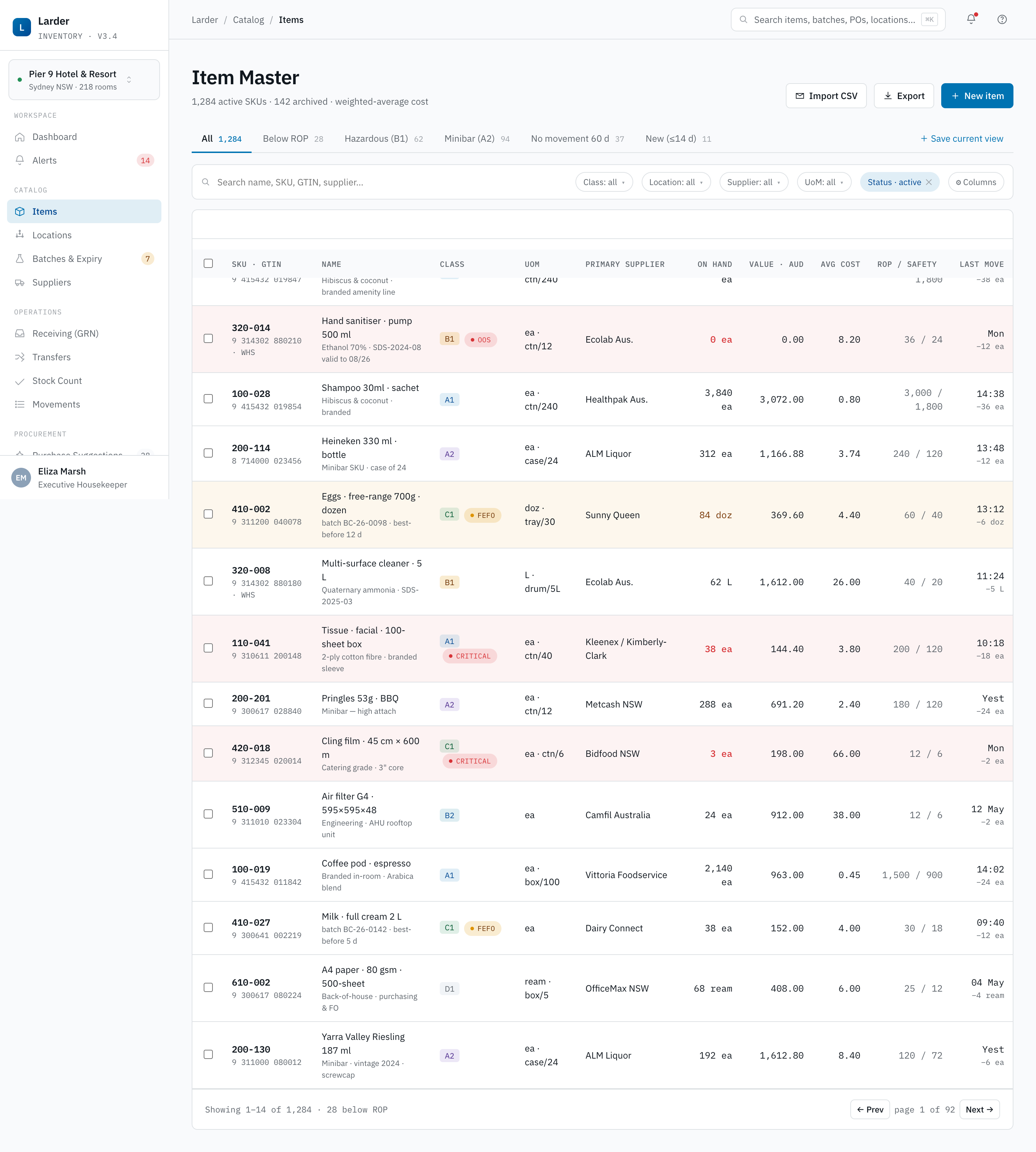 1
2
3
4
5
1
2
3
4
5
- 1Search & filter — query by code, GTIN, description; chips narrow by USALI class, supplier and status.
- 2New item — opens the SKU drawer (Step 1 of How to use below).
- 3Column toolbar — toggle GTIN, ABC class, ROP, On-hand value; the layout is saved per user.
- 4Item row — click anywhere to open Item Detail; the inline UoM column shows purchase / stock / issue.
- 5WHS & status chips — hazardous SKUs carry a yellow GHS pin;
Inactiverows are dimmed.
When to use
- Adding a new SKU after a procurement decision.
- Deactivating an SKU that is being replaced.
- Bulk price-list updates after a supplier contract renewal.
- Looking up GTIN / internal code when handling a paper invoice.
How to use — adding a new SKU
- Click New item top-right. The drawer opens.
- Fill the identity block: internal code (auto-suggested), GTIN if printed on packaging, USALI class, item description (English and any required second language).
- Fill the UoM block: purchase UoM, stock UoM, issue UoM, and conversion factors. The system will not allow an item with missing conversions.
- Select preferred supplier and price per purchase UoM. If multiple suppliers, mark one preferred and add the others as alternates.
- Set ROP, Safety stock, Lead time, Cost method. The FC must approve a cost method other than Weighted Average.
- If the item is hazardous, tick Hazardous and attach the current SDS — the WHS Register entry is created automatically on save.
- Save as
Active. The SKU is immediately available to Receiving and Mobile.
Item Detail
Everything about one SKU on one page — distribution, batches, history, price curve, ROP configuration.
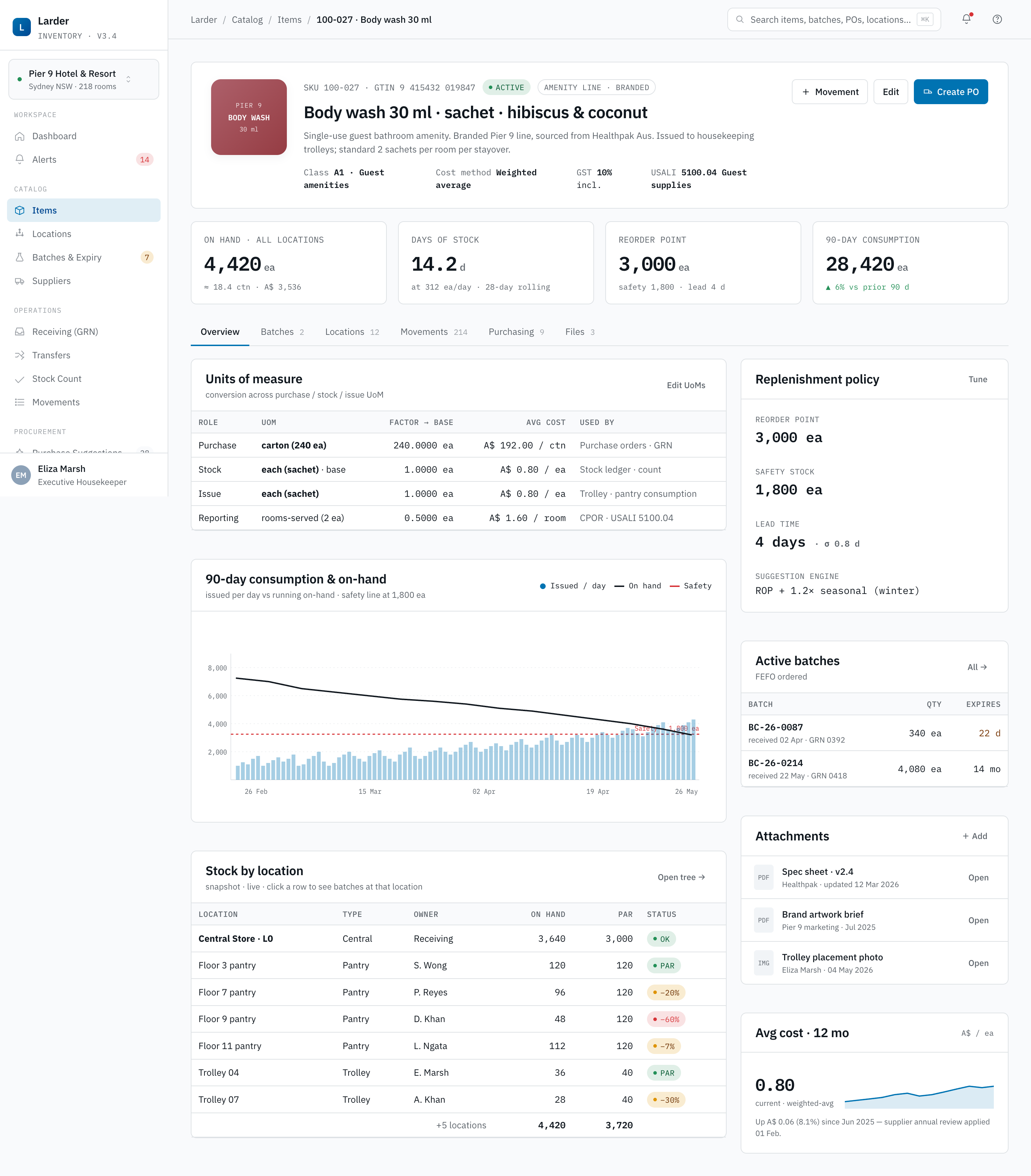 1
2
3
4
5
1
2
3
4
5
- 1Identity strip — internal code, GTIN, USALI class, hazard flag and current on-hand value (AUD).
- 2UoM & conversion — purchase ↔ stock ↔ issue with factors; the FC cannot save with a missing factor.
- 3Tabs — switch between Overview, Replenishment, Batches, Suppliers & price and History.
- 4Distribution map — on-hand per location; click a node to deep-link to the Locations tree.
- 5Reorder configuration — ROP, safety stock, lead time and seasonality; Simulate ROP opens the tuning panel.
When to use
- An Alert points at this SKU — open the detail to see distribution and recent movements before deciding.
- Negotiating a contract — open the price curve to take a quote-history print.
- Tuning ROP — review the 90-day consumption trend and seasonality factor.
How to use — tuning the reorder point
- Open the SKU and switch to the Replenishment tab.
- Review the 90-day consumption curve per location — a single high-variance location often drives a wrong global ROP.
- Click Simulate ROP, adjust the safety-days slider, watch the projected stockout count update live.
- Save changes — the system writes an audit note
ROP TUNED · operator · timestamp.
Stock by Location
The tree view of where every unit of every SKU is, with par-level gap and one-click replenish.
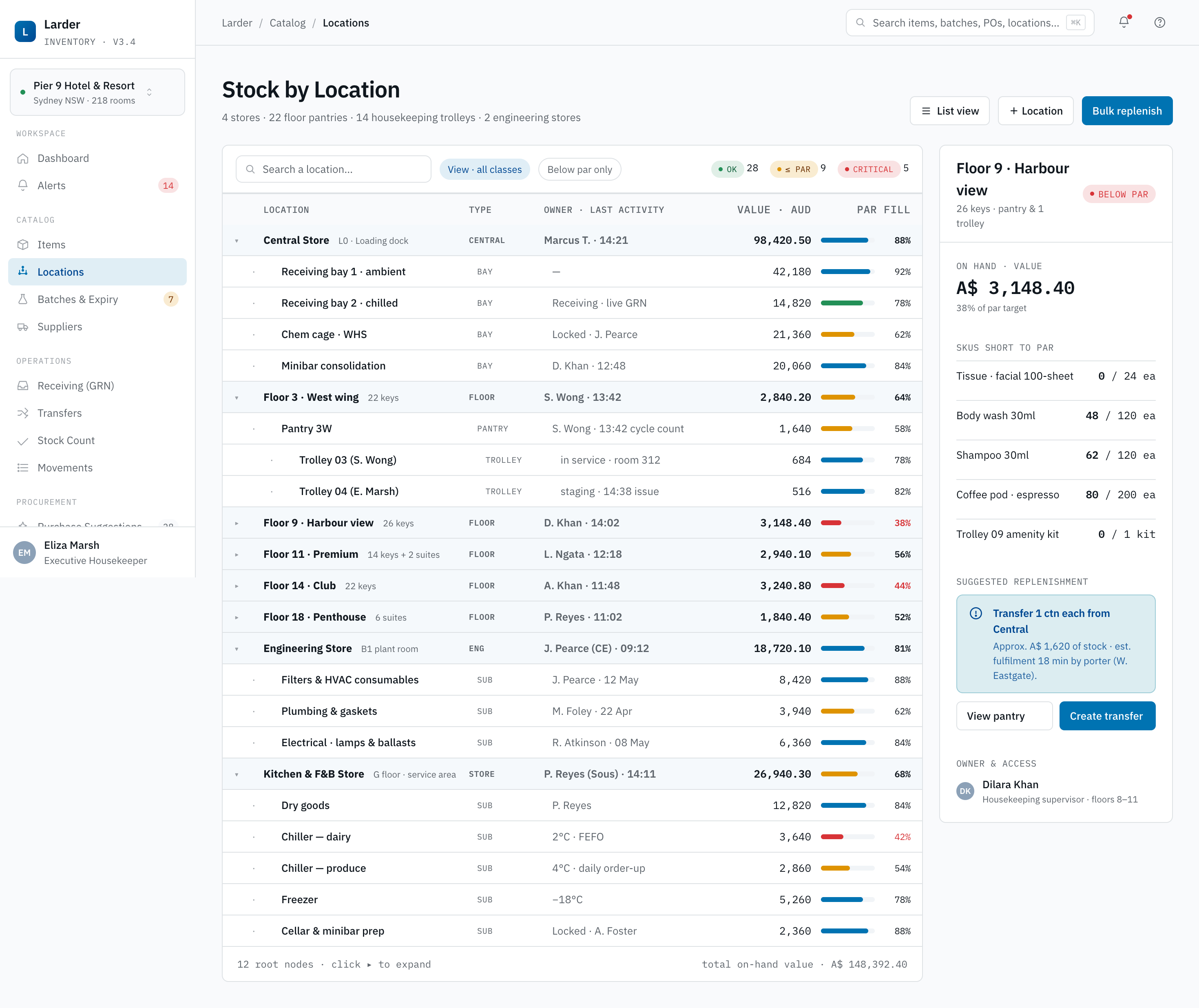 1
2
3
4
5
1
2
3
4
5
- 1Location filter — property selector + free-text filter restricted to the tree.
- 2Pantry node — amber = below par, red = stockout; click to expand the SKU list.
- 3Replenish — pre-fills a Stock Transfer from Central Store with gap quantities and FEFO pick batches.
- 4Trolley sub-tree — last mile to the room; par-level controlled per trolley per shift.
- 5Capacity bar — soft cap per location; a full bar prompts Move surplus out instead of Replenish in.
When to use
- A floor pantry is empty mid-shift — find the nearest pantry with surplus.
- Setting up a new trolley before a shift.
- Approving a transfer request from a supervisor.
How to use — replenish a floor pantry
- Expand the tree to the floor pantry that needs stock.
- Items below par are tinted amber; items at zero are tinted red.
- Click Replenish on the location header — the drawer pre-fills a Stock Transfer from Central Store with the gap quantities.
- Adjust quantities if needed, choose pick batch (FEFO is the default), submit. The transfer enters
Requested.
Batch & Expiry Tracker
Visibility on every batch nearing expiry, with FEFO pick priority and write-off projection.
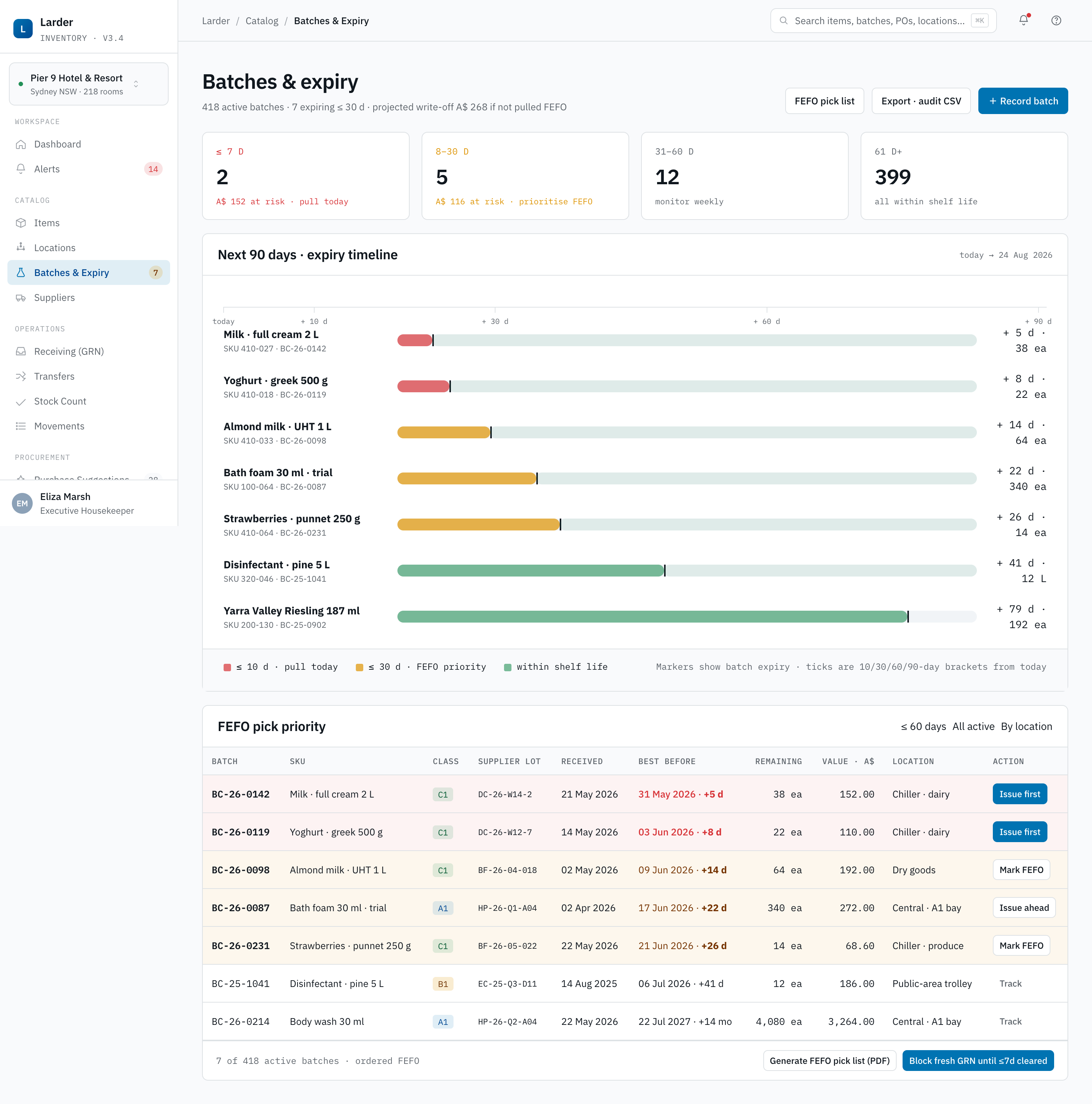 1
2
3
4
1
2
3
4
- 160 / 30 / 7-day bands — items grouped by expiry urgency; counts shown in the band headers.
- 2Batch row — batch no., supplier lot, mfg / expiry, qty remaining, location and projected write-off (AUD).
- 3Action menu — Promote (transfer) · Consume (staff café) · Write off (
ADJUSTreasonEXPIRY). - 4FEFO pin — the batch chosen by default when this SKU is picked anywhere in the system.
When to use
- Weekly pre-shift review — identify what must be issued this week to avoid write-off.
- Before initiating a Transfer — verify the pick batch.
- Month-end — compute and post expiry write-offs.
How to use — weekly review
- Open the tracker. The three bands are 60 days, 30 days, 7 days.
- Sort by projected write-off value. Highest-value rows go to action first.
- For each row, choose: Promote to high-velocity location (transfer), Consume in-house (staff cafeteria, internal use), Write off (post an
ADJUSTwith reasonEXPIRY). - Save the decision log — the FC sees it at month-end.
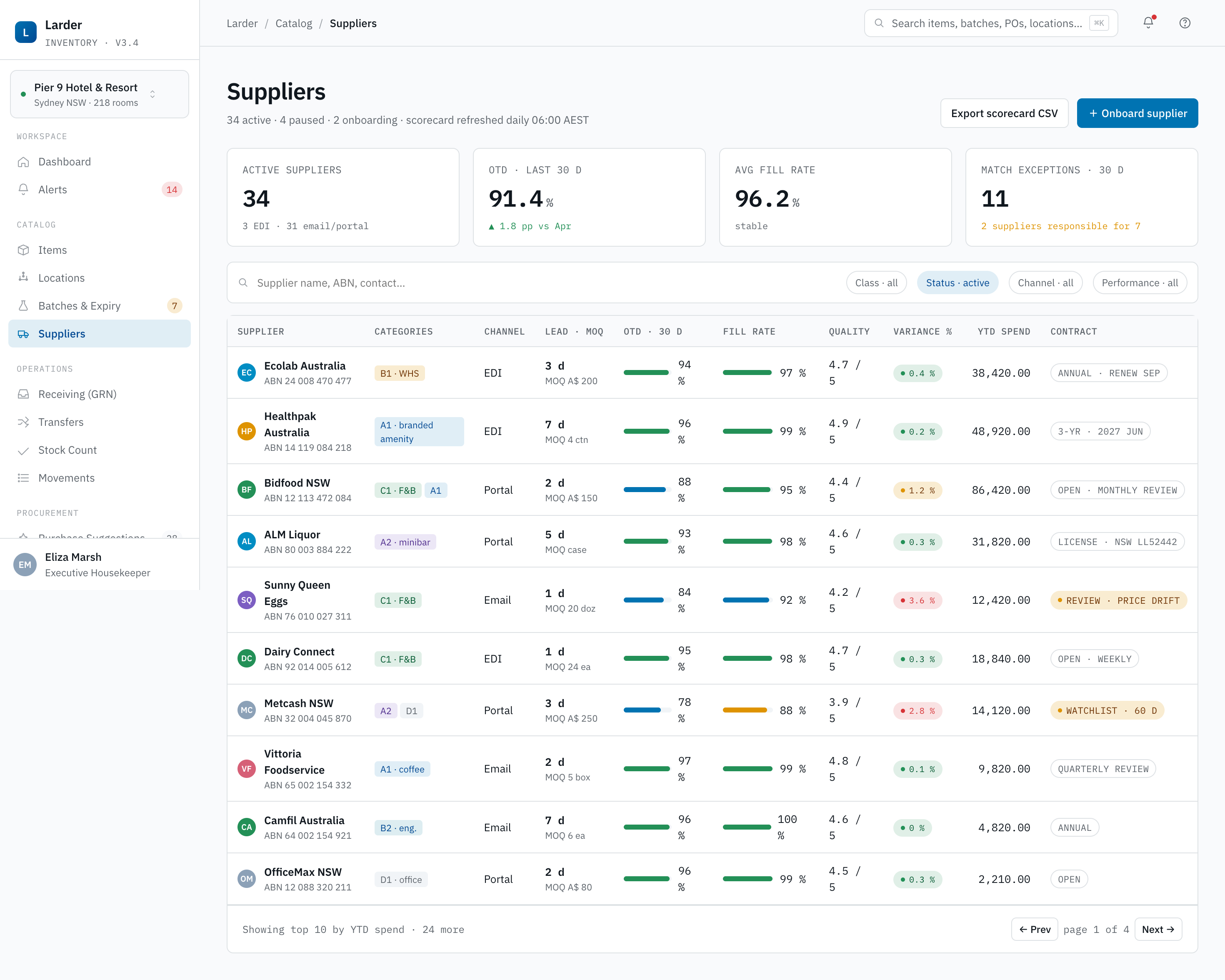
Suppliers
Supplier master data — price lists, MOQ, lead time and performance scorecards.
 1
2
3
4
1
2
3
4
- 1Supplier list — legal name, ABN, GST status, payment terms; click to open the supplier card.
- 2Scorecard — rolling 90-day on-time rate, quality, variance & spend; surfaced on every PO at draft time.
- 3Master agreement — uploaded contract with expiry & auto-reminder 90 days before renewal.
- 4Price-list CSV import — validated against the Item Master before activation; rejected lines surfaced inline.
When to use
- Onboarding a new supplier — record ABN, GST registration, payment terms, banking, freight terms.
- Updating a price list — bulk import via CSV with validation against current ranges.
- Quarterly business review — read on-time rate, quality score and variance rate.
How to use — onboard a new supplier
- Click New supplier. Enter legal name, trading name, ABN, GST status, address.
- Record contacts: AR, account manager, after-hours.
- Set commercial terms: payment terms, freight terms, MOQ rules, default lead time.
- Upload the executed master agreement. The system records expiry and surfaces a renewal reminder 90 days before.
- Upload the price list. The system validates each line against the Item Master before activating the supplier.
4.3 Operations
Operations groups the daily transactional verbs that move stock and reconcile records. Five screens compose the section, in the order most operators encounter them through the day: Receiving turns a delivery into stock; Movements is the append-only ledger of every quantity change; Transfer shifts stock between locations; Count reconciles physical against system; Alerts is the three-tier stockout stream that drives intra-day action.
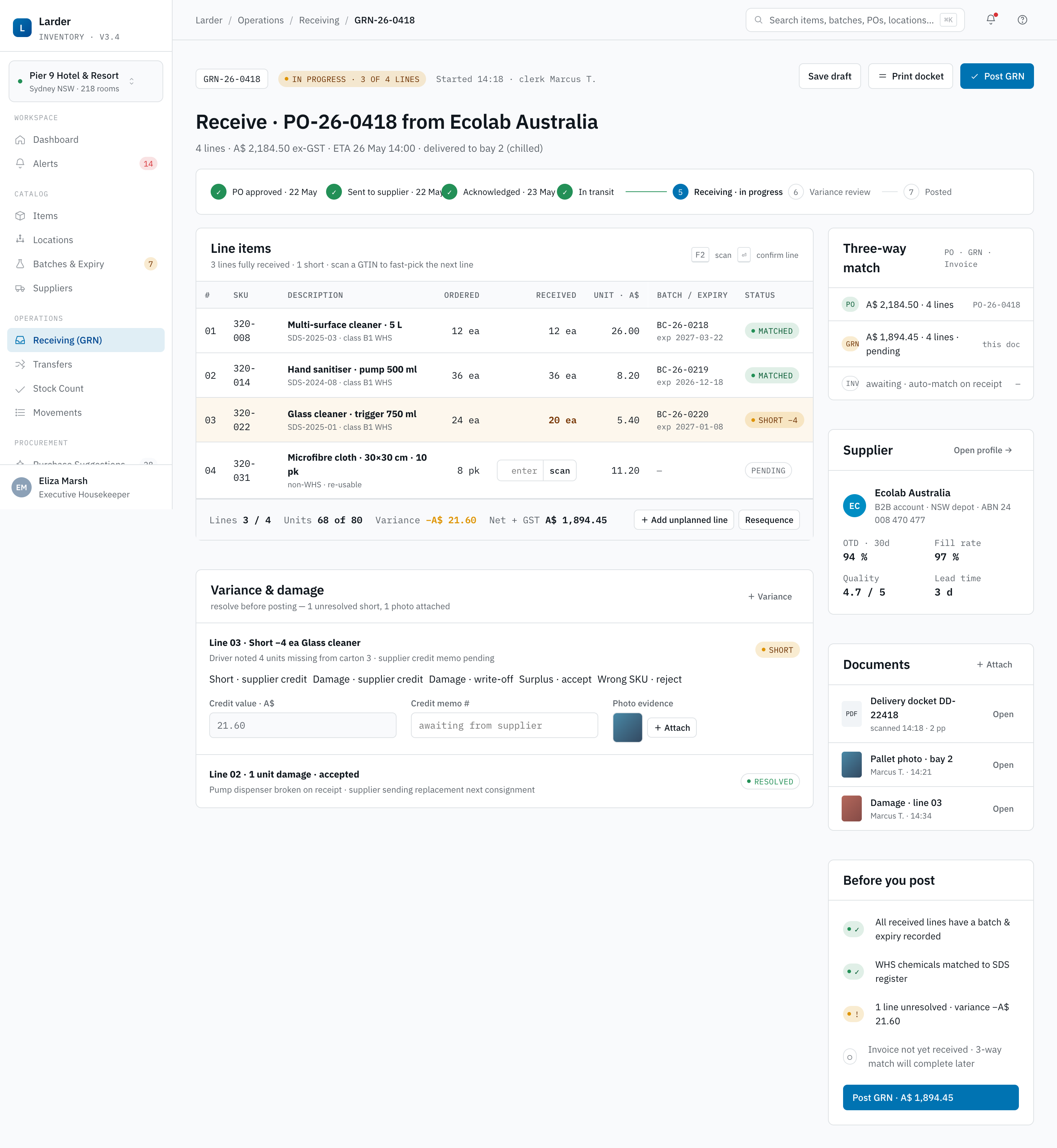
Receiving · GRN
Turn a supplier delivery into stock — match against a PO, capture batches, raise variances, post the Goods Received Note.
 1
2
3
4
5
1
2
3
4
5
- 1PO header — supplier, expected date, dock and currency; the supplier-side delivery note must match before unloading.
- 2Line table — PO qty, received-to-date, this-receipt qty, unit cost; scanner input lands on the active row.
- 3Batch & expiry capture — mandatory for perishables / chemicals; feeds Batches & the WHS Register.
- 4Variance flag —
Short·Over·Damage·Wrong item; notifies Procurement and posts goods at actual qty. - 5Post GRN — writes
INmovements, updates weighted-average cost, transitions the PO toPartially Received/Received.
When to use
- A scheduled delivery arrives at the loading dock.
- An ad-hoc delivery is presented — must be matched to a PO before any unloading.
How to use — standard delivery
- Search the open PO list by supplier name or PO number — confirm the supplier on the delivery note matches.
- Click Begin receiving. The PO header opens with each line ready to receive.
- For each line, scan (mobile) or key the received quantity. For batched items, key batch number, manufacture date and expiry date — these become the audit source for FEFO and the WHS register.
- Raise any variance:
Short,Over,Damaged,Wrong item. Variances trigger a notification to the Procurement Officer; goods are received at the actual quantity, not the PO quantity. - Attach the supplier's delivery docket photograph or signed paper copy.
- Click Post GRN. The system writes the
INmovements, updates on-hand and weighted average cost, and moves the PO toPartially ReceivedorReceived.
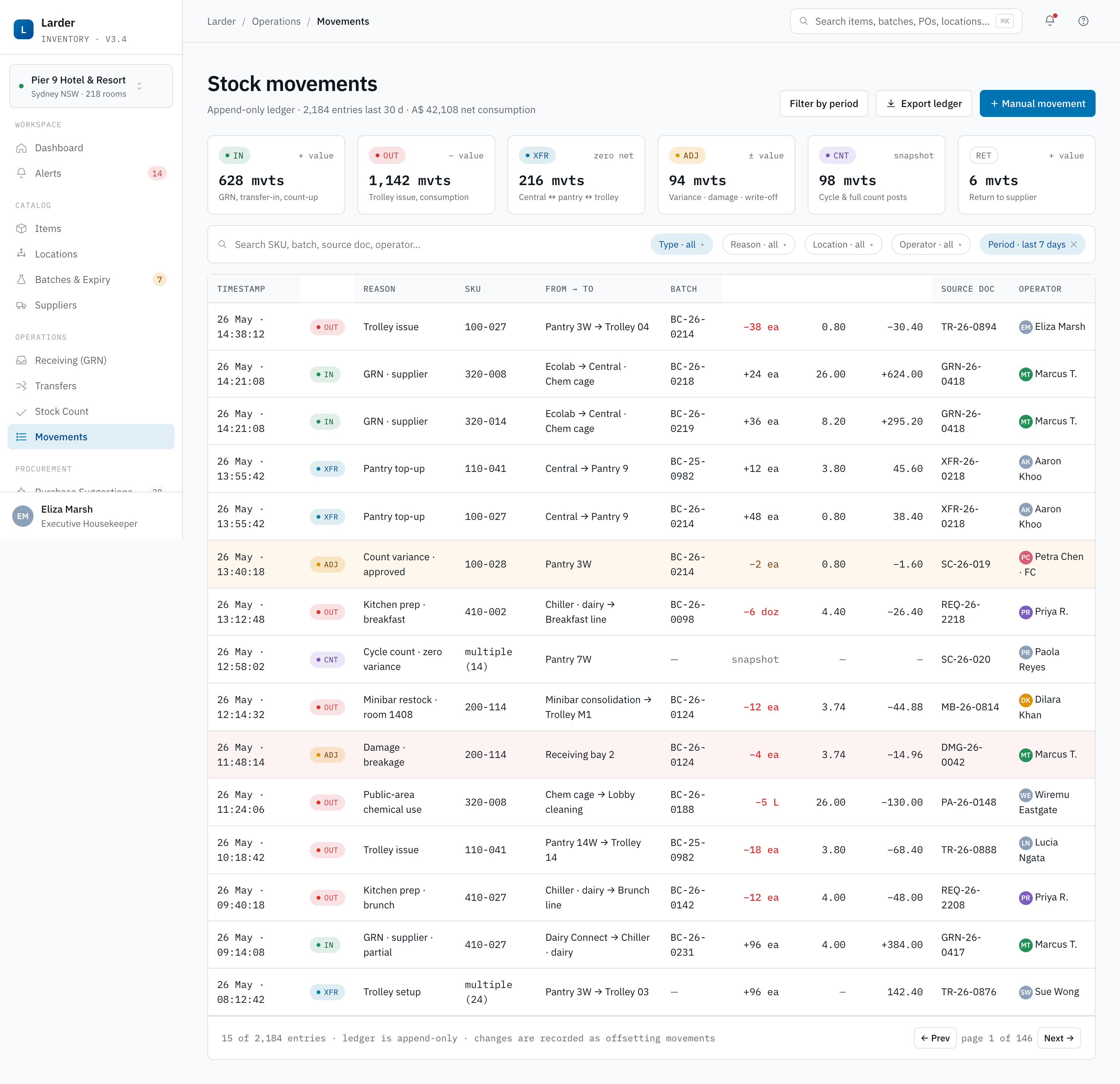
Stock Movements
The append-only transaction log — every change to on-hand, ever.
 1
2
3
4
5
1
2
3
4
5
- 1Period & Item filter — narrow the ledger by SKU, location, type and reason; bookmark common filters per user.
- 2Type chips —
IN/OUT/TRANSFER/ADJUST/COUNT/REVERSAL; mix & match. - 3Export — emits the filtered set as CSV/XLSX for the FC working papers or audit sample.
- 4Movement row — type pill, qty, unit cost, batch, from/to, operator, ref-doc, timestamp — all on one line.
- 5Ref-doc link — opens the source document (GRN, Count, Transfer) for one-click traceability.
When to use
- An on-hand number looks wrong — trace it back to the source document.
- Month-end: the FC ties the sum of movements to the GL inventory account.
- External auditor sample requests — produce a filtered export by date and reason.
How to use — trace an unexpected drop
- Apply filters: Item = the SKU, Date range = the suspicious window, Type =
OUT,ADJUST,COUNT. - Sort by timestamp; the offending movement will show operator, reason code and ref-doc.
- Click the ref-doc link to open the source document (Receiving, Count or Adjust).
- If a correction is needed, post a
REVERSALfrom the source document — never attempt to edit a movement directly.
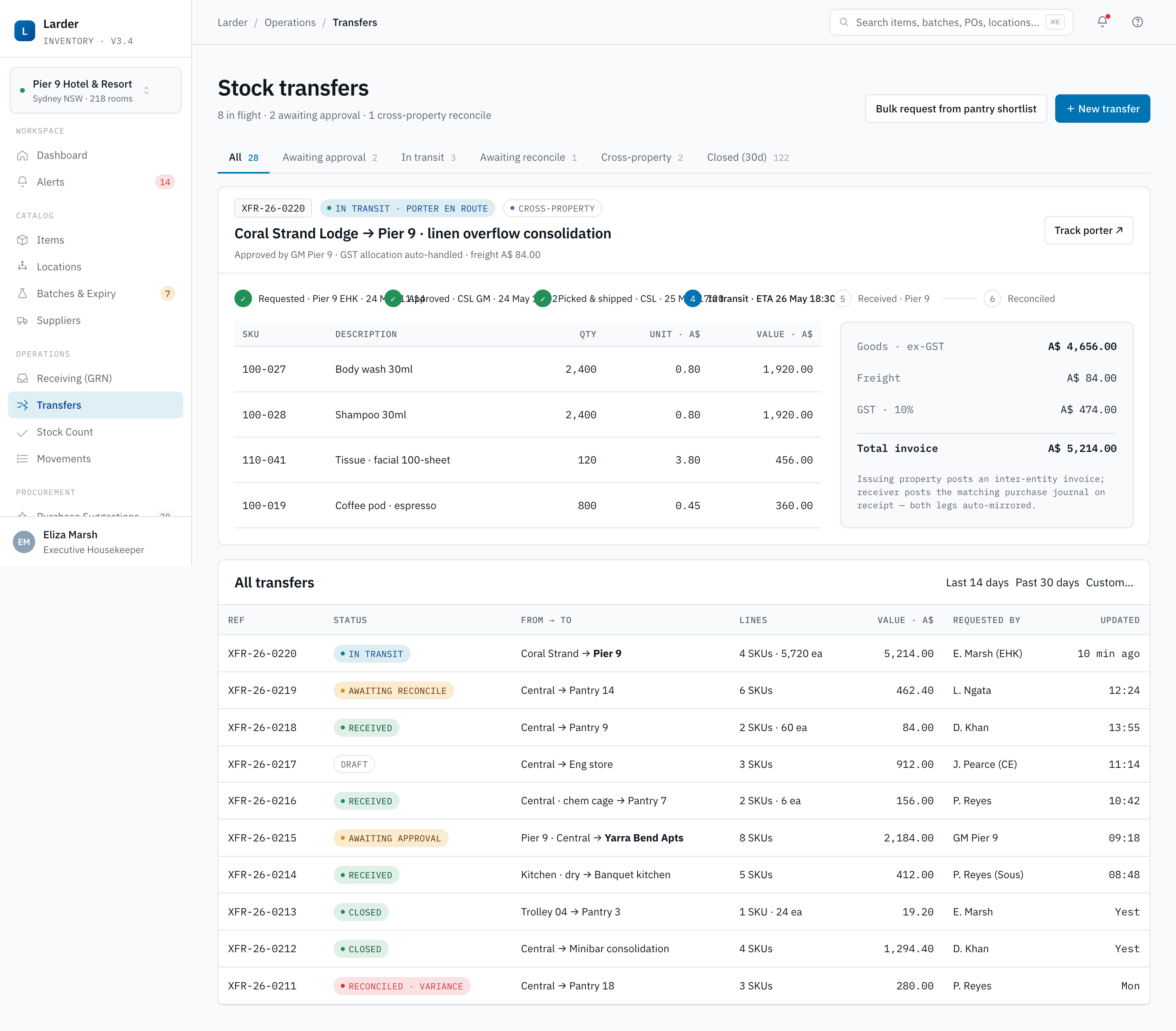
Stock Transfer
Move stock between locations — including across properties, with automatic GST handling.
 1
2
3
4
1
2
3
4
- 1From → To — source & destination selectors; cross-property pairs surface a GST inter-company badge.
- 2Pick lines — qty per SKU; FEFO batch is the default and is shown in the pick column.
- 3State pill — current transition (Requested → Approved → In Transit → Received → Reconciled).
- 4Variance on receive — Short / Damaged is posted as an
ADJUSTreasonTRANSIT-LOSSand the transfer closesReconciled.
State machine:
When to use
- Floor pantry below par and the next delivery is more than 24 hours away.
- A sister property in the same group has surplus — shift stock to avoid expiry.
- Setting up a trolley for a non-resident attendant.
How to use — cross-property transfer
- Request a transfer from the requesting property's Locations screen — name the destination property and location.
- The destination Exec Housekeeper or FC reviews and Approves.
- Source picks stock under FEFO, scans into the transfer manifest, marks In Transit. The system creates an
OUTmovement at source. - On arrival, destination scans against the manifest and marks Received. The system creates an
INmovement and posts the inter-company GST adjustment automatically. - Any short/damage at receive is raised as a variance, posted as an
ADJUSTreasonTRANSIT-LOSS, and the transfer moves toReconciled.
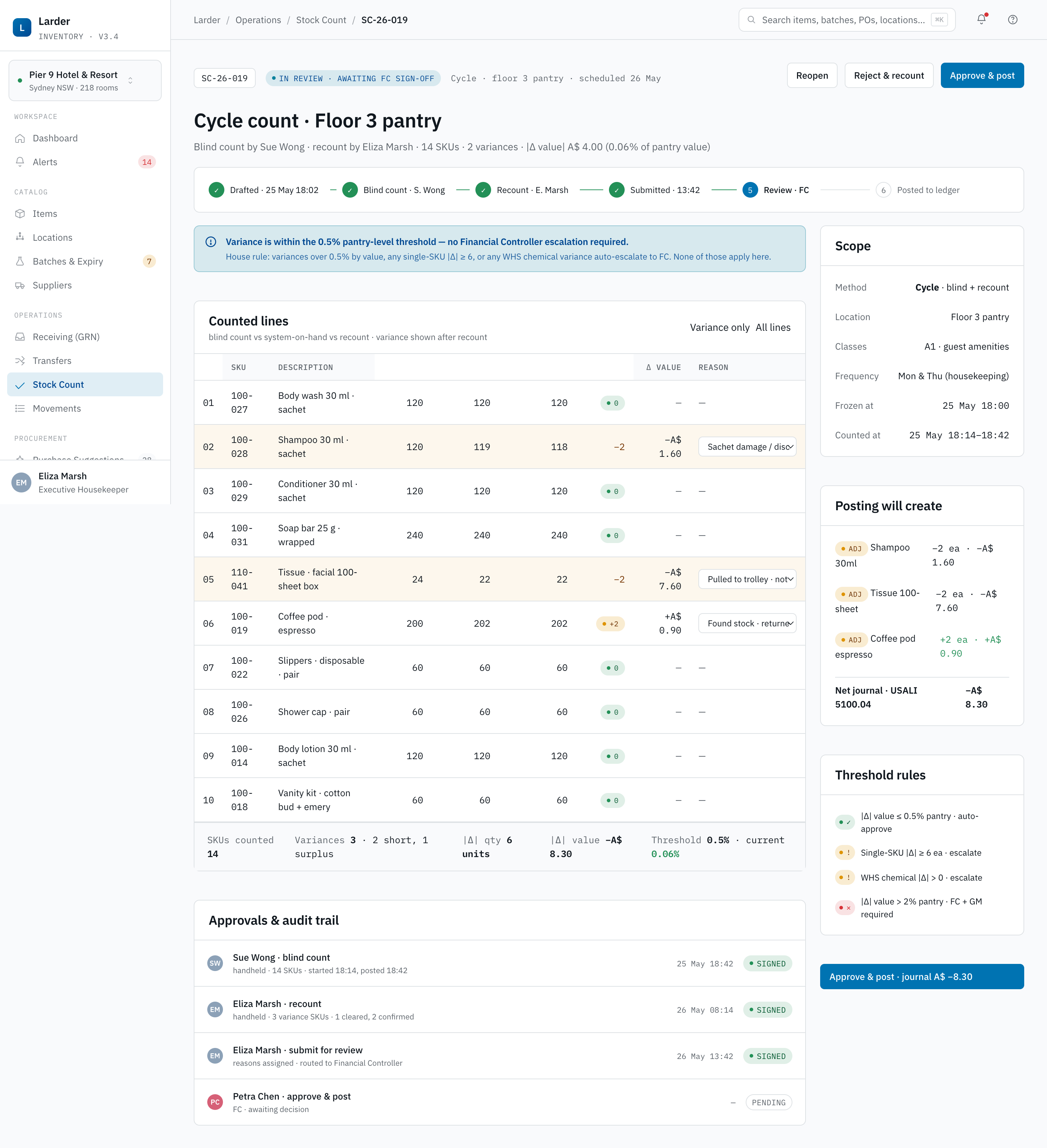
Stock Count
Periodic physical count — wall-to-wall, cycle or spot — driving an auditable inventory reconciliation.
 1
2
3
4
5
1
2
3
4
5
- 1Count header — ID, scope (location / class / cycle), mode (Blind · Reveal), and current state pill.
- 2State stepper — Draft → In Progress → Submitted → Reviewed → Posted; transitions are role-gated.
- 3Counter assignment — two counters, recount enforced above the variance threshold (default A$200 / line).
- 4Variance review — FC filters by reason (Damage / Theft / Expiry / System) before posting.
- 5Post — writes
COUNTmovements; variance ≥ A$1,000 requires GM co-approval.
State machine:
When to use
- Weekly cycle count of high-velocity SKUs (top 20% by movement).
- End-of-month full count for AASB 102 valuation.
- After an Alert investigation flags a possible discrepancy.
How to use — full count of Floor 12 pantry
- Create count — choose scope By location, pick
Floor 12 Pantry, choose mode Blind (counters do not see system on-hand). - Assign two counters. The system locks the location so no movements can post until the count completes.
- Counters use Mobile: Stock Count to scan items and key counted quantity.
- On Submit, the system compares both counters and the system on-hand. Variances above the threshold (default A$200 per line) trigger a recount.
- Recount any variances; the second pass is binding.
- The FC opens Review, inspects variances by reason (Damage, Theft, Expiry, System error) and clicks Post. The system writes
COUNTmovements and the count moves toPosted.
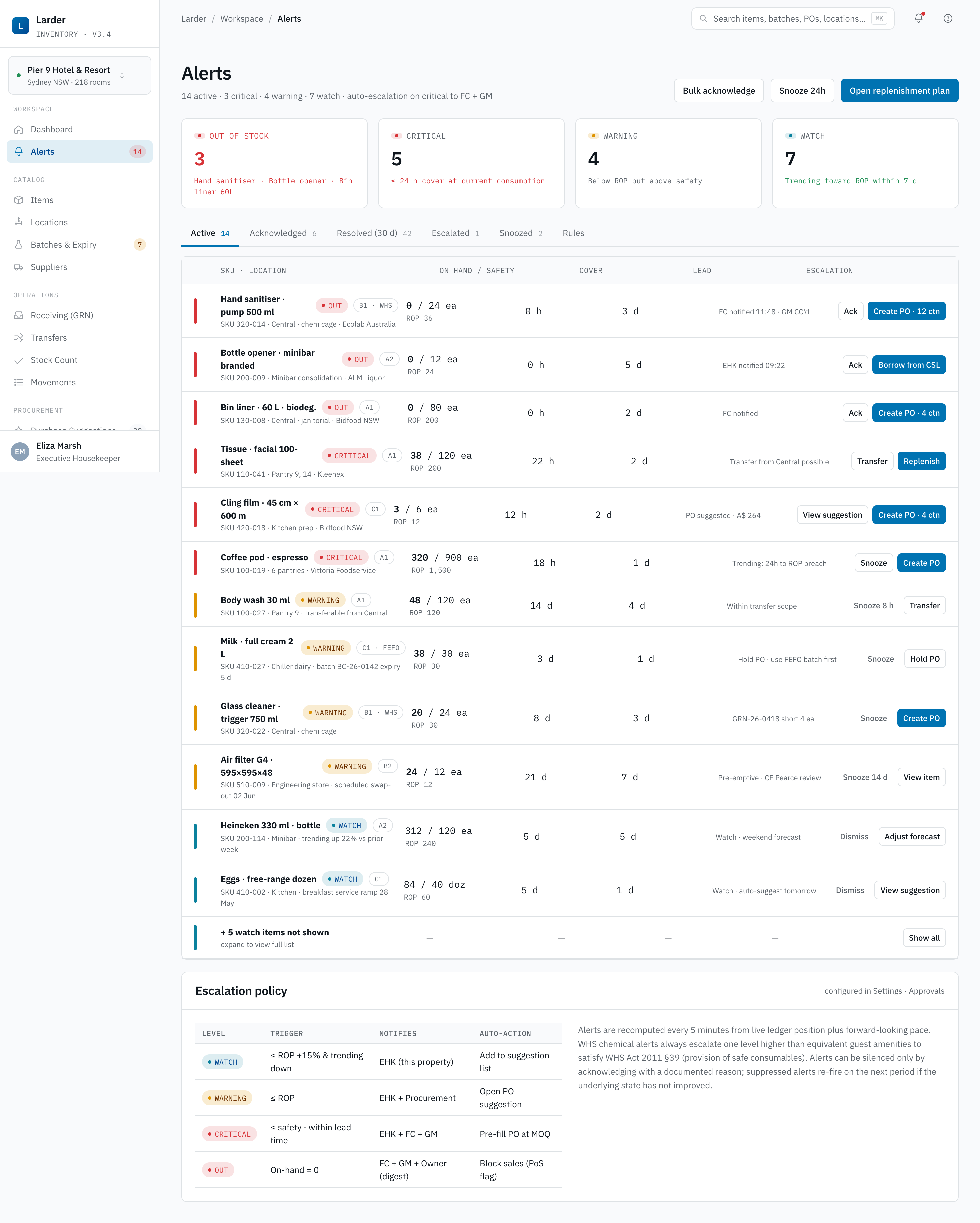
Low Stock Alerts
A three-tier alert stream — Warning, Critical, Out of Stock — with explicit acknowledge / resolve path.
 1
2
3
4
5
1
2
3
4
5
- 1Tier tabs — Critical / Warning / Out of Stock / All; counts in the badges.
- 2SLA timer — Critical must Acknowledge ≤ 4 h, Resolve ≤ 12 h; expired SLAs auto-escalate to the GM.
- 3Alert card — SKU, location, on-hand vs safety, suggested action with one-click Raise PO / Transfer.
- 4Acknowledge · Resolve — Acknowledge starts the SLA timer; Resolve closes the alert and audits the rationale.
- 5History & escalation log — every transition stamped with operator and IP; used in monthly KPI reviews.
State machine:
Tiers
| Tier | Trigger | SLA |
|---|---|---|
| Warning | On-hand ≤ 1.5 × ROP | Resolve within 24 h |
| Critical | On-hand ≤ Safety Stock | Acknowledge within 4 h, resolve within 12 h |
| Out of Stock | On-hand = 0 at any operational location | Acknowledge immediately, resolve within 4 h |
How to use — clear a Critical alert
- Click the alert. Confirm root cause: spike in demand, late delivery, mis-issue.
- Choose action — Raise PO from suggestion, Initiate transfer, or Acknowledge with rationale (e.g. seasonality and a delivery in 6 h).
- The system moves the alert to
Acknowledgedand stamps an SLA timer. When on-hand recovers, the alert auto-resolves. - If the SLA expires unresolved, the alert Escalates to the GM with full context.
4.4 Work centres
Five work centres each compose two or three domains into a single screen where one role can finish a complete piece of cross-domain work. A work centre owns no data of its own — only a layout, a filter set and an action set that lets a single user complete a task end-to-end without losing context. Where a domain page is the right tool to study a topic in depth, a work centre is the right tool to complete a task.
Procurement Hub
The Procurement Officer's home — purchase suggestions, purchase orders, three-way match and supplier scorecard on one cross-domain canvas.
A single Procurement Hub PO can mix Consumables lines (expense on issue), Asset lines (capitalisation on receipt) and Rotable replenishment lines (charge to OS&E amortisation). The hub composes three previously separate screens into one workflow: the nightly suggestion engine, the PO state machine and the supplier scorecard. It opens at procurement-hub.html and is the only screen a Procurement Officer needs through most of the day.
 1
2
3
4
5
1
2
3
4
5
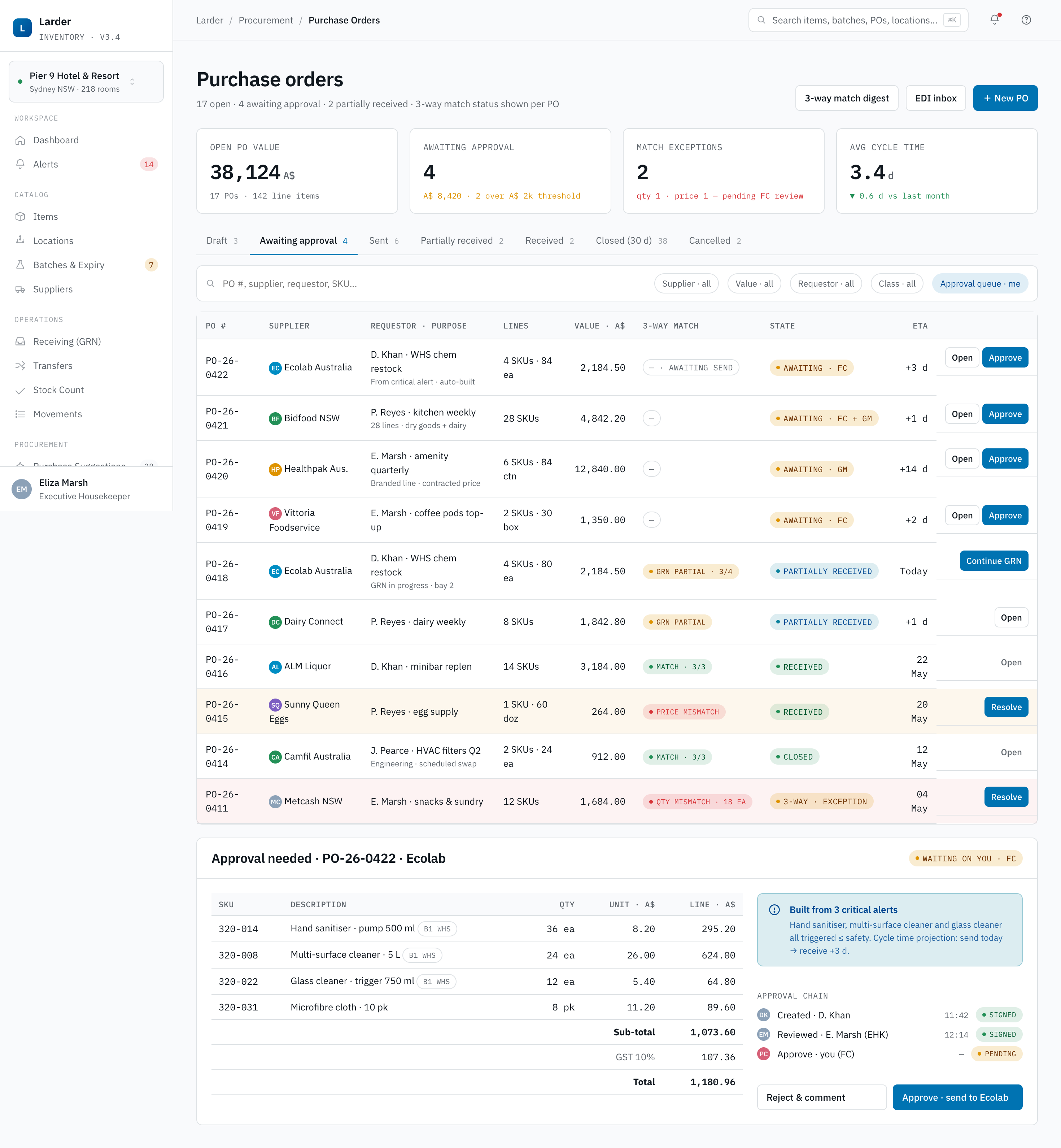
- 1Status tabs — Draft / Approved / Sent / Partially Received / Received / Closed / Cancelled; counts per bucket.
- 2New PO — opens drafting; supplier-locked items, lead time and price list auto-load.
- 3PO row — supplier, total (AUD ex GST), expected date, lines & received progress in one row.
- 43-way match badge — green when PO ≡ GRN ≡ Invoice; amber/red blocks Close until reconciled.
- 5Approval routing — values ≤ A$5,000 → Exec HK / FC; > A$5,000 require GM (§2.5 matrix).
 1
2
3
4
5
1
2
3
4
5
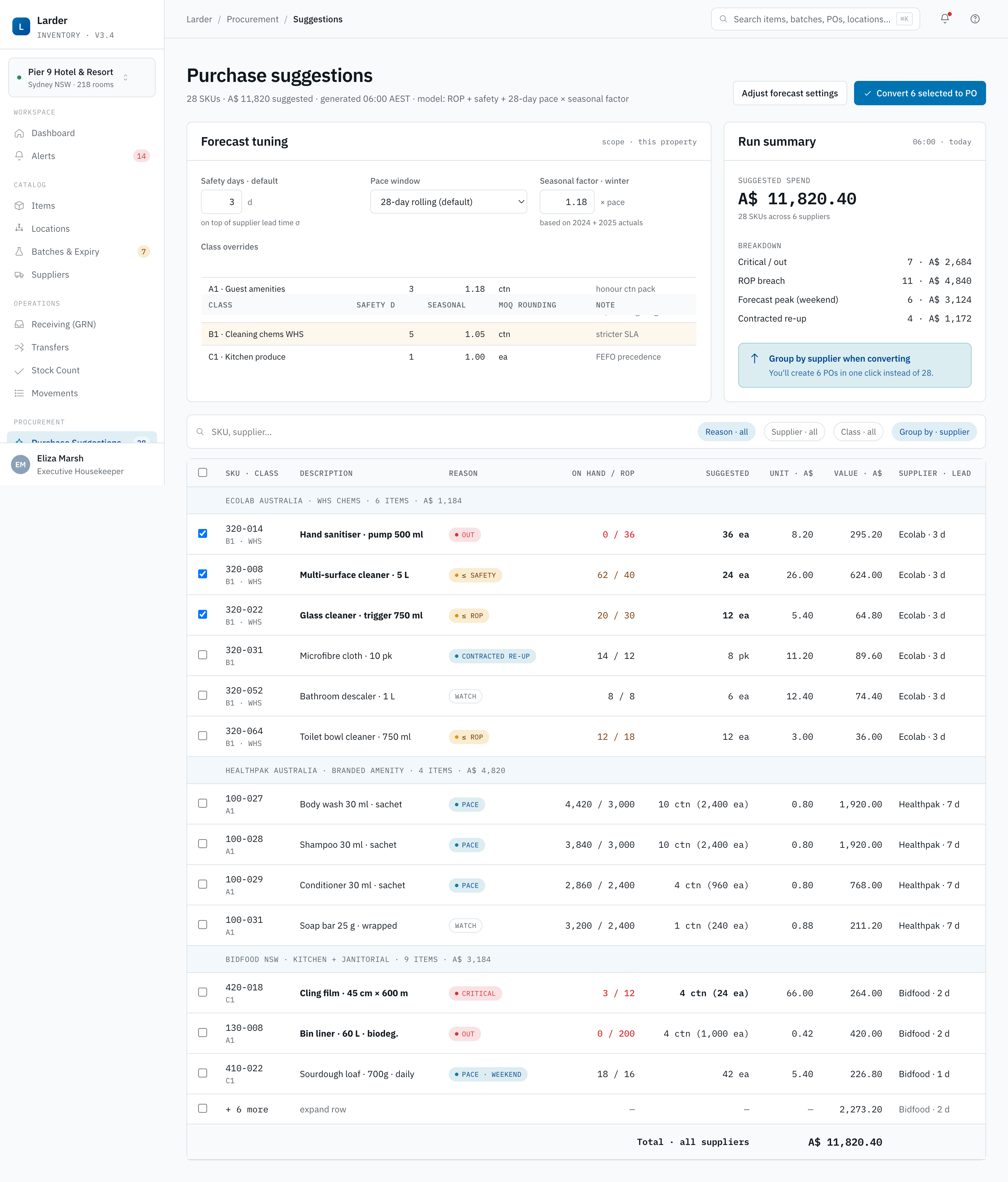
- 1Generated nightly — uses on-hand, open POs, ROP, safety stock and seasonality from the last 90 days.
- 2Global controls — safety days · seasonality factor · lead-time buffer; adjustments preview live.
- 3Create POs — one PO per supplier per day; pre-fills lines into the standard PO drafting flow.
- 4Grouped by supplier — keeps the daily PO count low and MOQ rules honoured.
- 5Suggestion row — current vs ROP, projected stockout date, suggested order qty & cost (AUD ex GST).
Purchase Suggestions
The suggestion engine recomputes nightly at ~07:00 and produces a daily procurement plan grouped by supplier so a single PO can be raised per supplier per day. The engine reads on-hand, open POs, ROP, Safety Stock, Lead Time and rolling 90-day demand for every SKU at every location, applies a seasonality factor, and emits a suggested order quantity with a projected stockout date if the line is not actioned.
- Open the Suggestions tab in the Procurement Hub. The list is grouped by supplier so a single PO can be raised per supplier per day, honouring MOQ rules.
- Review the global controls: Safety days, Seasonality factor, Lead-time buffer. Adjustments preview live against every line.
- Tick the lines to include. Adjust the quantity on any line where the engine cannot have known about an event (private function, ICC conference) not yet on the property calendar.
- Click Create POs. One PO per supplier is drafted with all selected lines pre-filled, ready for the standard approval flow under Purchase Orders.
Purchase Orders
Every PO Steward issues flows through the same state machine regardless of which domain a line belongs to. The chip row below applies equally to a consumable amenity carton, an Engineering chiller replacement and a rotable linen top-up.
- Click New PO, pick the supplier; supplier-locked items, lead time and price list load automatically. If the supplier supplies Consumables, Assets and Rotable lines, all three classes are selectable.
- Add lines — SKU, quantity, purchase UoM. The system shows the latest unit price and the variance against the rolling 90-day average; an amber chip marks any line outside ±5%.
- Confirm delivery date and ship-to location. Asset lines prompt for a capitalisation cost centre at draft time; rotable lines prompt for a target par location. Save as
Draft. - Submit for approval. Routing follows §2.5 — Consumable values ≤ A$5,000 route to Exec HK or FC; > A$5,000 require GM; any line marked as a capitalised asset also routes to the FC regardless of value.
- On approval, click Send. The PO is emailed or pushed via EDI to the supplier; status moves to
Sent. - On receipt, GRN
GRN-26-0418writes theINmovements (Consumables), the capitalisation entries (Assets) or the par-pool increments (Rotable). Three-way match runs automatically against PO, GRN and invoice; mismatches blockCloseuntil reconciled.
Supplier scorecard
The scorecard panel surfaces the rolling 90-day performance of the supplier on the current PO before draft submission: on-time delivery rate, quality (rejection) rate, price variance against rolling average, short / over rate and cumulative spend. The values are computed from the Movement ledger so there is no second source of truth. A supplier whose on-time rate falls below the property's threshold prompts a banner suggesting an alternate; the alternate is the next-preferred supplier on the Item Master record. The scorecard data is also the input to the quarterly business review and to renegotiation conversations at contract anniversary.
Closed while PO, GRN and supplier invoice disagree on quantity or price. Resolve through the source documents — never adjust by adjusting the PO retroactively.Engineering Workbench
A maintenance technician's home — the asset card, the work order, the MRO part pick (C), the tool checkout (A), photo capture and labour time on one screen.
When to use
- Starting a reactive work order raised by housekeeping or front office (the iron in 1208 does not work; the chiller
ENG-CHL-0012alarms low pressure). - Executing a scheduled preventive-maintenance work order generated from the PM Schedule.
- Calibrating a piece of equipment under a calibration WO template.
How to use — execute a work order
- Open
engineering-workbench.html. The left rail lists work orders assigned to you, sorted by SLA. Click the top WO; the right panel composes the asset card, the WO checklist and the part-pick and tool-checkout panels. - Scan or tap the asset tag (e.g.
ENG-CHL-0012) to confirm you are at the right body. The asset card shows the WO history of the last six months and any active warranty. - Issue MRO parts under the Parts panel — these are Consumables drawn against the WO as the cost centre, writing an
OUTmovement at unit cost. If a part is below ROP after the issue, an alert is raised inline. - Check out tools under the Tools panel. Each tool is an individually-tagged asset; checkout writes to the Custody Ledger and surfaces an expected-return reminder.
- Capture before / after photos and key labour minutes per technician. Move the WO chip through
In Progress→Completed; the Chief Engineer reviews and moves it toVerified→Closed.
Floor Operations
An Executive Housekeeper's floor-by-floor view that overlays consumable par gap (C), 3-Par linen state (R) and loanables on the floor (A) — with one-click replenish.
When to use
- The start-of-shift floor walk-through where consumables, linen and loanables must all be reviewed before housekeeping deploys.
- An ad-hoc top-up during a high-occupancy day where a single floor is bleeding stock.
- Approving a Supervisor's transfer request that touches more than one domain.
How to use — start-of-shift walk-through
- Open
floor-ops.html. The screen is a floor tree on the left and three stacked panels on the right: Consumable par gap (C), Linen 3-Par state (R) and Loanables on floor (A). - Pick a floor (e.g. Floor 12). The three panels refresh to that floor's bodies. A red chip on any panel signals a stockout, amber signals below par.
- Click Replenish floor in the floor header. Steward composes a single cross-domain Stock Transfer from Central Store that fills the consumable gap and tops up the linen pool to par, and surfaces any loanable that is overdue back to the pool.
- Review, adjust quantities if needed, submit. The transfer enters
Requestedand routes for approval per §2.5.
Room 360
Resolve a guest issue or a complaint anchored on a room — amenity par (C), room-tagged assets (A), linen state (R), today's cleaning and recent work-order history on one card.
When to use
- A guest reports an issue ("the iron does not work") — the room is the natural anchor for a cross-domain answer.
- Pre-arrival readiness check for a VIP — confirm amenity par, assets functional, linen ready.
- A post-checkout review where damage or loss is suspected.
How to use — resolve a guest issue
- Open
room-360.html?room=1208(or pick the room from the tree). The page assembles five panels: Amenity par, Assets in room, Linen state, Today's cleaning and Recent WOs. - Match the guest's complaint to a panel — an iron not working surfaces the asset tag, its warranty status and a one-click Raise WO button that pre-fills the asset tag
HSE-IRN-0042and the room. - If a replacement loanable is needed before the WO completes, the Loanable Pool tile shows the nearest
Availableiron and offers an Issue action that writes a custody event. - Add a note to the room — visible to the next operator who opens Room 360 for the same room.
Finance Close
The Financial Controller's month-end canvas — AASB 102 valuation (C), AASB 116 depreciation (A) and USALI Schedule 5 amortisation (R) consolidated into one journal pack with Xero / MYOB / SUN export.
When to use
- Month-end close — the single screen that drives the AASB 102, AASB 116 and USALI Schedule 5 journal lines for the period.
- Mid-month sanity check before the GM standup — preview the projected close before the period ends.
How to use
- Open
finance-close.html. The page is a checklist of close gates — count posted, GRN reconciled, transfers closed, depreciation run, amortisation run, GST preview prepared, journal preview produced. - Work each gate top-down. Steward will not enable the next gate until the prior gate is green.
- Run the Journal preview. The preview shows every debit and credit line that will post to the GL, grouped by USALI schedule and tagged with the originating ledger record.
- Export to Xero, MYOB or SUN. Once the export is acknowledged by the FC, the GM can lock the period — after which no movement can post into the locked period without a REVERSAL and a new period.
For the full close procedure including roles, evidence and exception handling, see SOP 6.6 — Month-end close in chapter 6.
4.5 Domains
The Domains section holds the depth pages that are not covered by Operations or Work centres. These screens are class-specific — they only apply to one of Consumables, Assets or Rotable — and they exist because the domain in question has substantive content that does not generalise. A user typically opens a Domain page to study a topic in depth, then returns to a Work centre or an Operations page to act.
4.5.1 Consumables
Consumables-specific depth pages cover the regulatory backbone (the WHS chemical register) and the replenishment science (reorder points and ABC classification). The Item Master, Locations, Batches, Suppliers, Receiving, Movements, Transfer, Count and Alerts screens that consumables also use are documented under their cross-domain homes in 4.2 and 4.3.
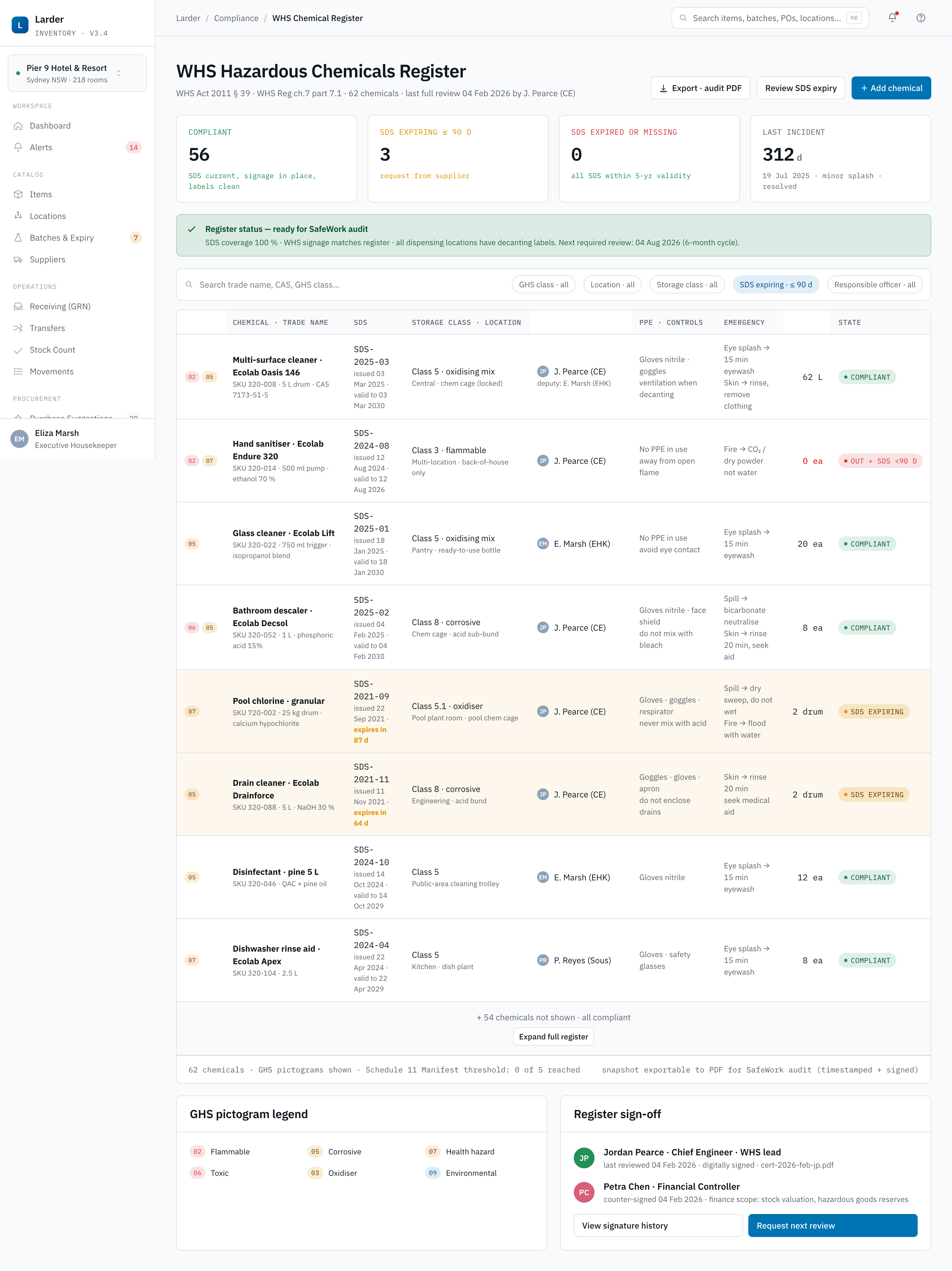
WHS Chemical Register
The hazardous chemicals manifest required by WHS Regulation §349 — one-click export for regulator audits.
 1
2
3
4
5
1
2
3
4
5
- 1Compliance header — declares the regulation in force (WHS Regulation §349 · NSW) and last regulator export.
- 2Export to PDF — one-click manifest for a regulator visit; signed by Exec Housekeeper & WHS Officer.
- 3Chemical row — name, GHS pictograms, SDS version + expiry, responsible officer, storage location.
- 4SDS status — green / amber / red against the 90-day expiry rule; an expired SDS blocks issue on Mobile.
- 5Consultation log — “Mark consulted” after a toolbox talk; this is your evidence under WHS Act §39.
When to use
- Annual WHS audit or a regulator request — produce the manifest as PDF.
- A new chemical SKU is added to the catalogue — confirm the SDS is current.
- Quarterly walkthrough — verify physical storage matches the declared location.
How to use — refresh an SDS
- Filter the register by SDS expires ≤ 90 days.
- For each row, request the new SDS from the supplier. The system surfaces the supplier contact in the row.
- Upload the new SDS. The system extracts version, issue date, expiry and GHS pictograms; verify and confirm.
- Click Mark consulted after the team toolbox talk; this is your evidence of consultation under WHS Act §39.
Reorder Points & ABC Classification
The replenishment-science screen — set, simulate and audit the ROP, Safety Stock and EOQ for every consumable SKU, segmented by ABC class.
When to use
- Quarterly ROP review — the FC and Procurement Officer re-tune the model against the prior quarter's stockouts and write-offs.
- After an alert investigation — a Critical alert that traces back to a stale ROP rather than a real demand spike.
- On the introduction of a new SKU, where the first ninety days of demand are now a sample worth fitting.
How to use — quarterly tuning
- Open
reorder-points.html. The page is segmented by ABC class — A (top 20% by value, ~80% of spend), B (middle band) and C (long tail). Tune A items first, B second, leave C on default. - For each A-class SKU, read the panel: rolling 90-day demand per location, lead time observed (versus lead time declared), and the projected stockout date at the current ROP.
- Apply the standard formula referenced in §3.6 —
ROP = (avg daily demand × lead time) + safety stock. The safety stock is set by the FC; demand is rolling-90-day per location; lead time is the supplier-observed average, not the contract value. - Click Simulate on any row to overlay the proposed ROP against the historical curve — the simulator counts how many of the prior 180 days the new ROP would have triggered an order or a stockout.
- Save changes. Steward writes an audit note
ROP TUNED · operator · timestampon the Item Master detail and refreshes the next suggestion run.
4.5.2 Assets
The Assets domain covers nine screens for owned property, plant and equipment under AASB 116. The register holds one row per tagged body for its entire life; the custody ledger and PM schedule keep that body operating; depreciation and disposal close the book on it. Every screen here references the asset tag (ENG-CHL-0012, HSE-IRN-0042) as the primary key.
Asset Register
One row per tagged body — the auditable list of every asset the property owns, with status, custodian, NBV and class.
When to use
- Capitalising a new asset from a posted GRN — the register is the row of record.
- Locating a particular asset by tag, by class or by custodian.
- Running the annual asset audit — the register is the master against which the floor walk reconciles.
How to use — capitalise a new asset
- Open
assets-register.html. Click New asset (or, more commonly, accept the capitalisation prompt from a posted GRN). - Confirm the SKU on the Item Master, key the asset tag (Steward will offer the next number in the class series), set the initial custodian and location.
- Set the depreciation profile — method (straight-line or reducing balance), useful life in months and salvage value (AUD). The FC must approve any deviation from the class default.
- Save. The asset enters
Commissioned; the first month's depreciation will accrue at the next period close.
Custody Ledger
The append-only history of every custody event — who held the asset, when, what condition it was in on hand-off and on return.
When to use
- An asset is found in the wrong location and the FC needs to know who last held it.
- An offboarding staff member is being checked out — the ledger lists every key, uniform set and tool still in their name.
- An external auditor sample asks for the chain of custody on a specific asset tag.
How to use
- Open
assets-custody.html. Search by asset tag, by custodian, by location or by date range; the ledger is append-only and every row is timestamped and signed by the operator. - Click any row to open the source event — a loanable issue opens the Loanable Pool, a tool checkout opens the Tool Crib, a uniform issue opens HR onboarding.
- Export the filtered view as CSV for audit working papers. The export carries the operator's IP address per row.
Loanable Pool
The shared pool of guest-loanable assets — cribs, irons, wheelchairs, AV — circulated under Available → Reserved → Issued → Returned → Cleaning → Available.
When to use
- A guest requests a crib, an iron, a wheelchair or an AV item — find the nearest Available body, reserve, issue.
- Tracking down an overdue item that should have been returned at check-out.
- Scheduling routine cleaning and minor repair between issues.
How to use — issue a loanable
- Open
assets-loanable.html. Pick the item class (e.g.Iron). The pool shows every body's current state with the floor it is on. - Pick an
Availablebody, click Issue, scan the room key or key the room number; the custody event names the room as the holder until return. - On guest check-out, scan the asset tag at the desk; Steward moves it to
Returnedand then toIn Cleaning. Once HK signs off, it returns toAvailable.
Tool Crib
The engineering team's tool register — individually-tagged tools, calibration cadence, and the shared-versus-individual checkout rule.
When to use
- A technician starting a work order needs a tool — checkout against the WO is the trail back to who held what during the repair.
- A calibrated instrument is due for recalibration — the crib shows the next-due date and routes to the calibration vendor.
- End-of-shift sweep to confirm shared tools have been returned to the crib.
How to use
- Open
assets-toolcrib.html. Tools are grouped by class (electrical, plumbing, HVAC, measurement) and tagged shared (returns at end of shift) or individual (assigned to a technician for the duration of an assignment). - Scan the tool tag, then the WO number. Steward writes a custody event linking tool, technician and WO.
- On WO closure, the technician scans the tool back into the crib — the system flags any tool still out at handover.
- For calibrated instruments, the calibration cadence is on the PM Schedule and a calibration WO is auto-generated against the tool when it becomes due.
Uniform & Keys
The staff-facing register — uniform sets and master keys issued under custody on hire, returned on termination.
When to use
- Onboarding a new starter — issue the appropriate uniform set and any keys their role requires.
- Offboarding a leaver — check every uniform set and key back in; the system blocks final payment until the custody balance is zero.
- Mid-employment exchange — a worn uniform is exchanged for a replacement; the worn set is written off.
How to use — onboarding
- Open
assets-uniform.htmlfrom the new starter's HR record. Steward proposes the issue list against the role (e.g. a Room Attendant gets two summer dress sets and a winter set; a Chief Engineer gets a coverall, a safety vest and the engineering master key). - Scan each item's tag against the starter. The custody event names the staff member as the holder; the items move out of the central stockroom into the staff member's name.
- The starter signs (electronic or paper); the signed record is the evidence at offboarding.
Lost on the register and follow the property's rekeying procedure — Steward raises a Critical alert to Security and the GM simultaneously.PM Schedule
The preventive-maintenance plan — templates by asset class, calendar and list views, automatic work-order generation on cadence.
When to use
- Building the PM template for a newly-introduced asset class — cadence, checklist, estimated duration, required parts and tools.
- Reviewing next month's PM load against available technician hours — the calendar view shows the schedule pre-generation.
- Adjusting a cadence after a recurring fault pattern emerges on the asset history.
How to use
- Open
assets-pm.html. The screen offers two views: Templates (one per asset class — chillers, lifts, AHUs, kitchen extractors) and Calendar (the generated WOs for the next 90 days). - Edit a template — cadence (e.g. quarterly), checklist items, required parts (MRO consumables) and required tools (calibrated instruments).
- Use the calendar view to confirm the load is balanced across the technician roster. Drag a WO to reschedule; the change is logged on the Custody Ledger of the affected asset.
- WOs auto-generate seven days ahead of the due date and land in the Engineering Workbench queue.
Work Orders
The CMMS register — every Reactive, PM and Calibration work order with the state machine Open → Assigned → In Progress → On Hold → Completed → Verified → Closed.
When to use
- Raising a reactive WO from a guest complaint, a housekeeping note or a fault alarm on engineering plant.
- Triaging the team's queue at start of shift — the Chief Engineer assigns priorities and balances the load.
- Reviewing a Completed WO before signing it off — the Verified step is the Chief Engineer's quality check.
How to use
- Open
assets-workorders.html. The board shows the queue grouped by state; the technician's mobile and the Engineering Workbench read from the same queue. - Click New WO — pick the asset tag, classify (Reactive / PM / Calibration), set priority, attach photos.
- Assign to a technician. The technician executes through the Engineering Workbench; parts issued, tools checked out and labour minutes captured all roll up to the WO cost line.
- On
Completed, the Chief Engineer reviews.Verifiedwrites the WO cost into the asset's lifetime maintenance cost;Closedarchives the record.
Depreciation Schedule
The AASB 116 monthly run — straight-line or reducing-balance depreciation per asset, NBV roll-forward, Xero / MYOB / SUN export.
When to use
- The monthly depreciation run as part of period close — every commissioned asset accrues one month's depreciation.
- The annual useful-life review required by AASB 116 ¶51 — the schedule is the source of evidence.
- Owner-rep enquiries on a specific asset's NBV at a specific date.
How to use — monthly run
- Open
assets-depreciation.html. The schedule shows every asset's opening NBV, this month's accrual, any impairment and the closing NBV. - Review the impairment column — Steward flags assets whose carrying amount exceeds the recoverable amount, per AASB 116 ¶63.
- Click Run. The journal preview shows the debit (depreciation expense by cost centre) and the credit (accumulated depreciation by asset class).
- Approve the run. Steward writes the journal lines and posts the export to Xero, MYOB or SUN.
Disposal
The end-of-life workflow — Retire, Sell, Scrap or Donate an asset; stops depreciation; computes gain or loss against NBV under AASB 116 ¶67–72.
When to use
- An asset has reached end-of-life — retirement, scrap or donation.
- An asset is being sold to a third party (sometimes a sister property) — gain or loss must be recognised.
- An asset has been lost or stolen — disposal under reason code
WRITE-OFF.
How to use
- Open
assets-disposal.html. Pick the asset tag (e.g.ENG-CHL-0012). The page shows current NBV, accumulated depreciation and any open WO. - Choose the disposal method — Retire, Sell, Scrap, Donate. For a sale, key the consideration received (AUD ex GST); Steward computes the gain or loss against NBV.
- Attach evidence — a board paper for a retirement, a contract for a sale, a destruction certificate for scrap, a deed for a donation.
- Submit. The FC's approval routes the asset to
Retired→Disposedin the state machine; depreciation stops at the disposal date; the gain/loss line posts to the next period close.
4.5.3 Rotable
The Rotable domain holds eight screens for the linen, china/glass/silver and uniform pools that circulate through the three-par cycle and amortise under USALI 11th Edition Schedule 5. The pool is sized by par configuration, kept healthy by the dispatch and receive cycle with the laundry vendor, and accounted for monthly via OS&E amortisation.
Par Configuration
Sets the target par level — multiplier, per-location sub-par and seasonal adjustment — for every rotable SKU.
When to use
- Quarterly seasonal swing — winter occupancy patterns differ from summer; the par multiplier may need lifting.
- A capital request to buy additional pool inventory — the screen sizes the request against current par compliance.
- Introducing a new rotable SKU (e.g.
LIN-BWL-7070cm bath towel) — set the initial par before first issue.
How to use
- Open
rotable-par.html. For each SKU, set the par multiplier (typically 3 for linen and uniforms, 4–5 for banquet CGS where banquet turnaround is faster than laundry turnaround). - Set per-location sub-par — Floor 12 Pantry holds enough for the floor's room count at one room change per day; Banquet Store holds enough for the next quarter's confirmed bookings.
- Apply a seasonality factor where occupancy is materially different (Sydney summer + 15%, July low season − 10%).
- Save. The configuration writes to the Item Master and drives the next 3-Par Circulation read.
3-Par Circulation View
A sankey rendering of every body in the rotable pool — Storage → Use → Soiled → Laundry → Storage — with loss attribution at every joint.
When to use
- A par compliance figure that has drifted below the property's threshold — the sankey shows which joint is leaking.
- The weekly review with the laundry vendor — the receive-side loss column drives the chargeback conversation.
- The monthly close — the closing pool composition reconciles to the OS&E amortisation pool.
How to use
- Open
rotable-circulation.html. The sankey draws the flow Storage → Use → Soiled → Laundry → Storage at the SKU level (e.g.LIN-BWL-70). - Hover any band to see the count and value (AUD). The dispatch and receive bands show the laundry vendor's name.
- Click any loss attribution — Stained, Torn, Worn, Lost, Guest, Broken — to drill into Loss Tracking with the filter pre-applied.
Laundry Dispatch
Weigh, scan and generate the dispatch note for every laundry pickup — the signed evidence that opens the vendor's window of custody.
When to use
- Every scheduled laundry pickup from the soiled-linen bay.
- An ad-hoc pickup raised on a banquet turnaround (e.g. an event ends and the linen must be turned around before the next service).
How to use — standard dispatch
- Open
rotable-dispatch.html. The scale is connected; weight is captured automatically. - Scan the bag tag or the bulk-counter tag for each batch — bath towels, hand towels, sheets, pillow cases. Steward counts pieces per SKU; the count is the binding number, the weight is a secondary check.
- Click Generate dispatch note (
DSP-26-1411). The vendor driver counter-signs on tablet; the signed PDF is filed in the Activity Feed. - The bodies move to
In Laundrystate; the dispatch note is the only legitimate counter-evidence at receive time.
Laundry Receive
Compare against the dispatch note, raise rejections (re-wash) and loss (write-off) with photo evidence.
When to use
- Every laundry receipt from the vendor — the receipt is the closing leg of the dispatch–receive pair.
- A receipt that arrives outside the SLA window — the receive screen flags the breach for the vendor reconciliation.
How to use
- Open
rotable-receive.html. The screen pre-loads the open dispatch notes from the vendor with a 7-day window. - Scan each returning bag against the dispatch. Steward splits the line into Returned (clean, returns to pool), Rejected (stained or torn, returned for re-wash), Loss (missing).
- For every Rejected and Loss line, attach a photo and a reason code (Stained, Torn, Worn, Lost). The line cannot post without evidence.
- Counter-sign with the driver; Steward closes the dispatch–receive pair. Loss lines flow into the monthly write-off journal.
Vendor Reconciliation
Monthly reconciliation with the laundry vendor — weight versus piece billing, agreed chargebacks for documented losses.
When to use
- The monthly meeting (in person or video) with the laundry vendor to agree the invoice.
- A material variance between the vendor's bill and Steward's count — the screen drives the dispute conversation.
How to use
- Open
rotable-vendor.html. Pick the vendor and the month. The page composes every dispatch–receive pair for the period, the vendor's claimed weight/piece bill and Steward's count. - Review variances. Where the vendor bills weight and Steward bills piece, the conversion factor is on the vendor card; persistent drift suggests a calibration problem on one of the two scales.
- Raise chargebacks for documented losses. The chargeback amount is the replacement cost per AS-IS Item Master pricing.
- Sign off. Steward writes a credit-note record against the vendor's invoice and feeds the FC's AP cycle.
Loss Tracking
Every body lost from the pool, attributed by reason code, floor, shift and attendant — the input to monthly write-off and to staff coaching.
When to use
- Investigating a recurring loss pattern — a single floor, shift or attendant showing above the property's threshold for loss per occupied room.
- Monthly close — every Loss line is reviewed before the write-off journal posts.
- Staff coaching — the floor + shift + attendant attribution is the conversation, not a punitive measure.
How to use
- Open
rotable-loss.html. The board groups losses by reason (Stained, Torn, Worn, Lost, Guest) and by attribution (floor, shift, attendant). - Filter by the dimension under investigation. Click any cell to drill into the underlying receive events with photo evidence.
- For the monthly close, click Prepare write-off pack. Steward emits a PDF for the FC's signature and a journal preview for the period close.
CGS Banquet
China, glass and silver — the pre-banquet and post-banquet count, breakage rate by event and the chargeback to event P&L.
When to use
- The pre-banquet count on the morning of an event — confirm the count meets the event BEO.
- The post-banquet count after the service — the difference is the breakage and loss.
- Quarterly review with the F&B team — breakage rate by event type drives the replacement budget.
How to use
- Open
rotable-cgs.html. Pick the event from the calendar (the BEO drives the expected count by SKU — dinner plates, bread plates, water glasses, cutlery sets). - Run the Pre-event count. Variances against the BEO require a top-up from the Banquet Store before service begins.
- Run the Post-event count. Breakage and loss are written off as
ADJUSTreasonBROKEN; the cost is chargeable to the event P&L. - Click Close event. The breakage line posts to the event ledger and to the property-level OS&E amortisation.
OS&E Amortisation
The monthly USALI Schedule 5 journal — the rotable pool's amortisation, replacement and write-off rolled into one period entry.
When to use
- The monthly USALI Schedule 5 journal as part of Finance Close.
- An owner-rep enquiry on the cumulative amortisation expense year-to-date.
How to use
- Open
rotable-amortise.html. The page composes the opening pool value, additions (replacements), reductions (write-offs from Loss Tracking) and the closing pool value. - Review the proposed amortisation expense — the USALI 11th Edition Schedule 5 method is the property's elected basis (straight-line on closing pool, or stub-period for additions).
- Run the journal preview. The debit posts to OS&E amortisation expense by department; the credit reduces the carrying pool value.
- Approve. The journal flows into the Finance Close and is exported alongside the AASB 102 and AASB 116 journals.
4.6 Reports & compliance
The Reports & compliance section is the read-out layer — the cross-domain dashboard, the period close pack, the CPOR analytics, the consolidated compliance centre and the library of standard reports. Every screen here reads from the shared ledger and the domain pages above — none of them holds its own data.
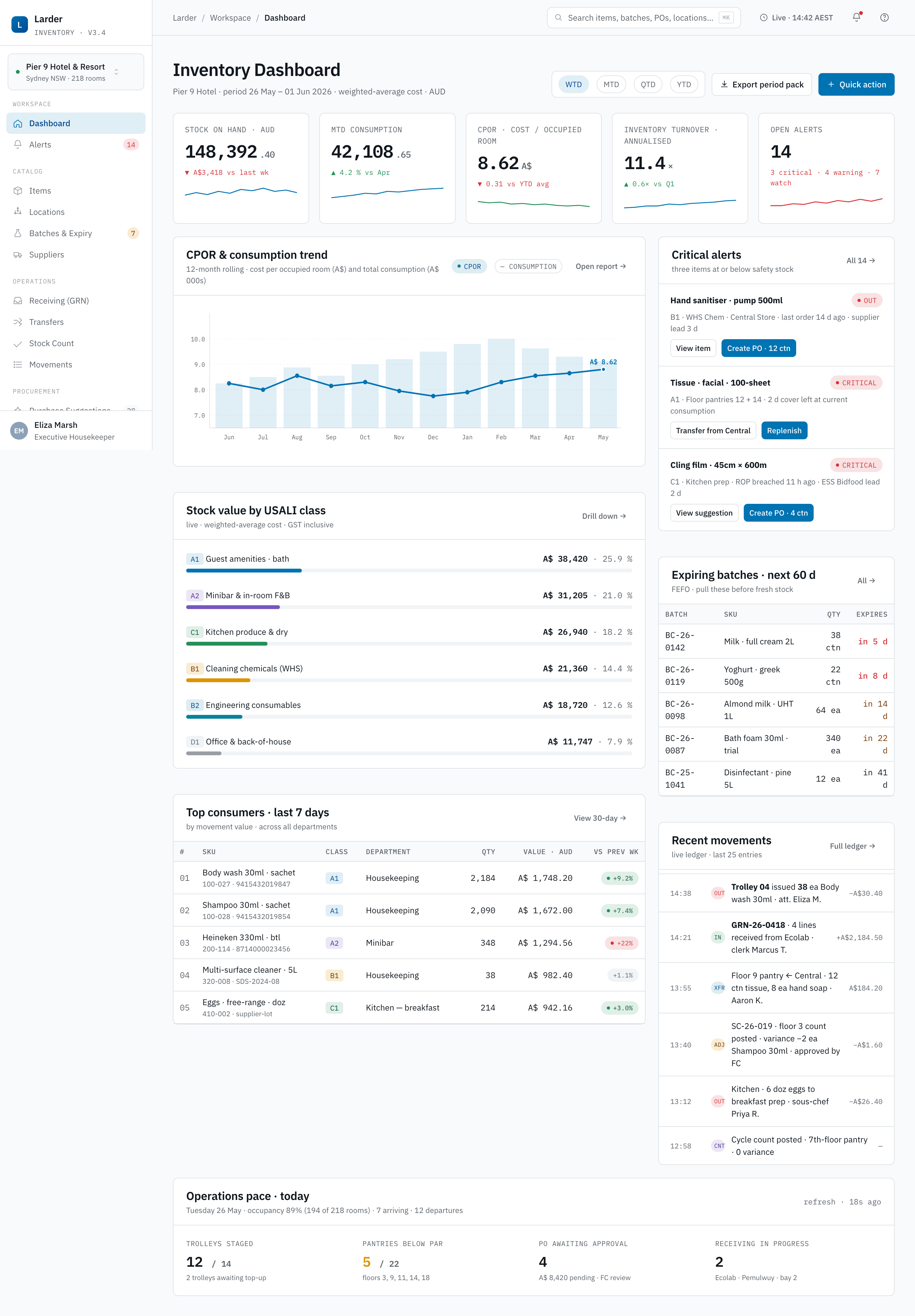
Unified Dashboard
Cross-domain KPIs — on-hand value (C), NBV (A), pool value (R), alerts across all three domains, top consumers, period status.
 1
2
3
4
5
1
2
3
4
5
- 1KPI strip — on-hand value (C), NBV (A), pool value (R), MTD consumption, CPOR, critical alerts.
- 2Period selector & Export — toggle MTD / QTD / YTD; Export period pack emits a PDF + XLSX bundle across all three domains.
- 3CPOR & consumption trend — click any bar to drill into Reports with the same date range pre-applied.
- 4Critical alerts —
Acknowledge/Resolveinline; Critical lines must clear before 10:00. - 5Top consumers (7d) — a week-on-week jump above the property's threshold is the most common signal of theft or a wrong cost-centre.
When to use
- Start-of-day overview: on-hand value, today's deliveries, overnight movements across all three domains.
- Spotting CPOR drift against the rolling 28-day baseline.
- Pre-meeting prep for the weekly HOD operations standup.
How to use
- Confirm the property selector at top-left matches the property you are reporting on — a multi-property GM should toggle through each.
- Review the KPI strip in order: On-hand value (C), NBV (A), Pool value (R), MTD consumption, CPOR, Stockouts (7d), Expiring ≤ 30d.
- Open the Alerts card; if any line shows
Criticalclick through to triage immediately — do not leave Critical alerts unacknowledged past 10:00. - Scan Top consumers (week) for anomalies — a single SKU jumping week-on-week above the property's threshold is the most common signal of theft or process error.
- Click the CPOR sparkline to drill into the Reports screen with the same date range pre-applied.
Period Close Pack
The combined AASB 102 + AASB 116 + USALI Schedule 5 close pack — journal preview, GST handling, Xero / MYOB / SUN export hand-off.
When to use
- Month-end production of the combined journal pack for the FC's GL posting.
- Quarter-end and year-end where the pack is also the source for owner reporting.
- An audit working-paper request — the pack is the FC's reference for any audit query.
How to use
- Open
period-close-pack.html. The pack is generated from the Finance Close gates once all gates are green. - Review the three composite journals — AASB 102 inventory roll, AASB 116 depreciation, USALI Schedule 5 amortisation — and the GST preview tied to each.
- Click Preview to see the debit / credit lines per cost centre. Discrepancies surface against the prior period's closing balances; explain or reverse before approval.
- Export to the GL — Xero, MYOB or SUN. Steward archives the export with a hash; the export hash is what the GM signs to lock the period.
CPOR & Cost Analytics
Cost per occupied room decomposed by floor, weekday, SKU and category — the analytic that answers "why did CPOR move?"
When to use
- CPOR has moved against the prior period and the GM needs to know why before the owner call.
- Building the next year's budget — the screen shows what CPOR would be if last year's mix were applied to next year's occupancy plan.
- Mid-year repricing — the rolling weighted-average cost is the input to the contract negotiation.
How to use
- Open
cpor-analytics.html. The top strip shows CPOR for the selected period, the comparison period and the property's target. - Drill by dimension — Floor, Weekday, Category, SKU. A single floor or weekday driving the variance surfaces quickly under the floor decomposition.
- Open the Top SKU drivers tab. The screen lists the SKUs whose consumption change contributed most to the CPOR delta.
- Export the analytic to PDF or XLSX for the owner pack.
Compliance Centre
A single consolidated view of WHS, USALI, ATO/GST and AASB compliance — checklists, evidence and one-click regulator export.
When to use
- A SafeWork NSW regulator visit, where the WHS manifest must be produced under WHS Act 2011 §39 and Regulation §349.
- The annual external audit — the Compliance Centre is the auditor's landing page.
- Monthly internal review — the GM signs off the property's compliance posture.
How to use
- Open
compliance-center.html. Four panels: WHS (Chemical Register status, SDS freshness, toolbox-talk consultation log), USALI (Schedule mapping coverage, OS&E amortisation method), ATO/GST (GST registration, BAS dates, GST handling on transfers and inter-company), AASB (102 cost method, 116 depreciation method, useful-life review evidence). - Click any red or amber chip to drill into the underlying screen. Each chip is computed from the live source — there is no manually-edited compliance status.
- Click Regulator export on a regulator visit. Steward emits a signed PDF carrying the property's evidence under the relevant clause.
Reports & Analytics
The KPI library — CPOR, Turnover, Days of Stock, Shrinkage, Top Consumers and the USALI departmental crosswalks.
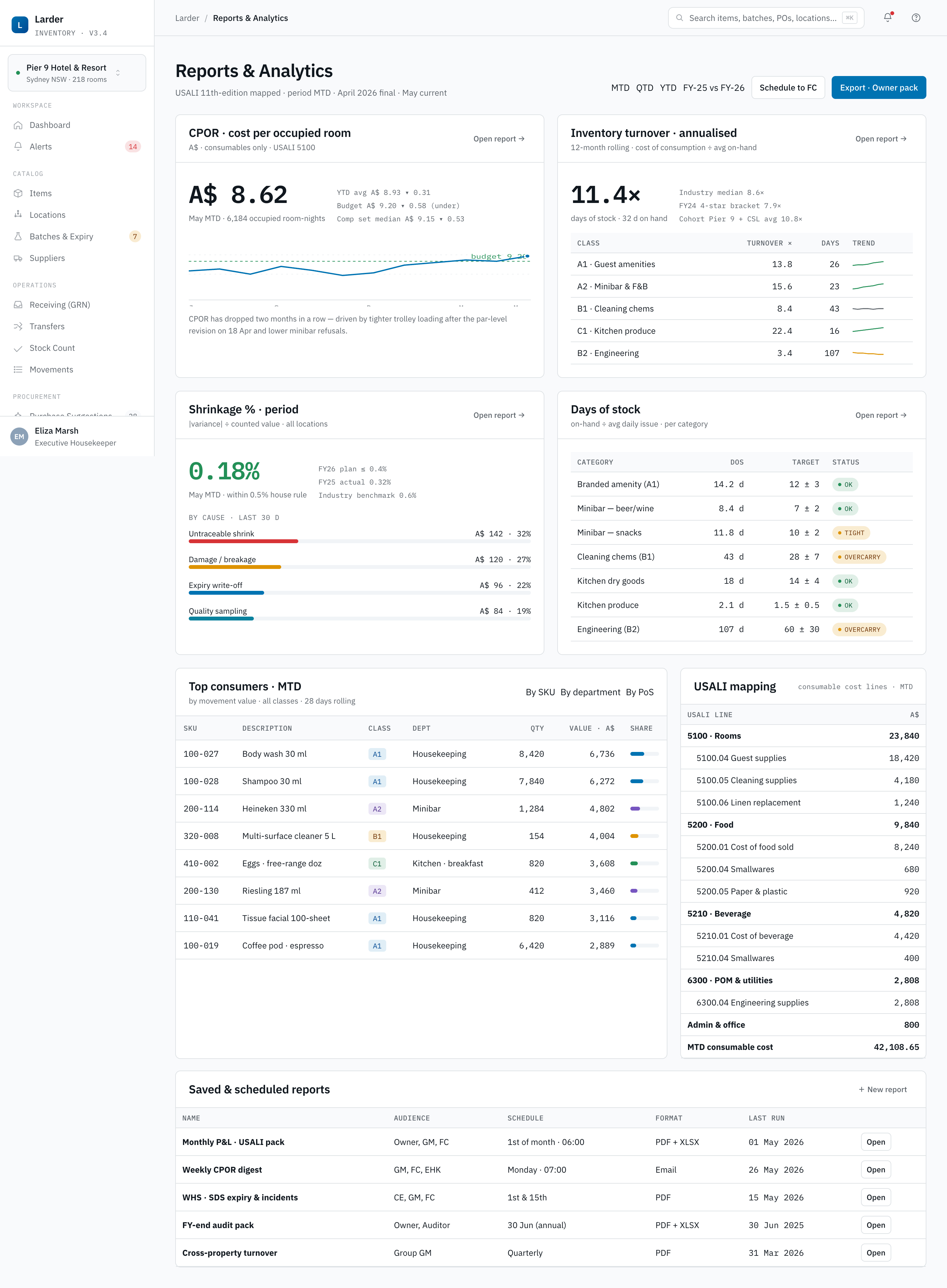 1
2
3
4
5
1
2
3
4
5
- 1Period selector — MTD / QTD / YTD / custom; locks every panel to the same window.
- 2Month-end pack — bundles Turnover, Shrinkage, CPOR, USALI Schedule 3 & 4, open POs — as PDF or XLSX.
- 3KPI grid — CPOR · Turnover · Days of Stock · Shrinkage %; arrow vs prior period.
- 4USALI cross-walk — every consumption line tied to a USALI 11th Ed. schedule for the P&L.
- 5Top consumers — 20 SKUs by week-on-week consumption; ±20 % threshold is the investigation trigger.
Standard reports
| Report | Definition | Reading rule of thumb |
|---|---|---|
| CPOR | Cost per Occupied Room — total consumption ÷ occupied rooms | Target ≤ A$6.50 per OCR for amenities at 4-star |
| Turnover | Annualised consumption ÷ average inventory value | Healthy > 12× for amenities, > 8× for chemicals |
| Days of Stock | 365 ÷ turnover, per SKU | Investigate any SKU > 60 days |
| Shrinkage % | Count adjustment value ÷ consumption value | Investigate > 1.5% |
| Top Consumers | Top 20 SKUs by week-on-week consumption | Compare to previous week ± 20% |
How to use — monthly close pack
- Set the period selector to the closing month.
- Run the Month-end pack preset — it bundles Turnover, Shrinkage, USALI Schedule 3 & 4 consumption and the open PO report.
- Export as PDF for the Owner's pack, or as XLSX for the FC's working papers.
5 · Mobile modules — front-line
Steward ships one mobile companion app, not one per role. The handset detects who is signed in and routes to a persona-specific home screen — the housekeeper sees today's rooms, the technician sees today's work orders, the receiving clerk sees today's open POs. Across personas the conventions are identical: large touch targets, one task per screen, an offline queue with idempotency keys so a screen that posts to the server (Receiving, Count, Adjust, WO, Room Card, Replenish) keeps working through a dead spot and reconciles automatically on next connection. A single universal scanner recognises every machine-readable identifier in the platform — SKU GTIN, asset tag, linen tag, PO line, GRN, WO reference and batch ID — and routes the user to the right action without forcing a screen choice up-front. Photo capture is a shared component shared across receiving variance, work-order completion, linen reject, asset damage and chemical breakage; every photo is stamped with operator, GPS and timestamp before it leaves the device.
5.1 Housekeeping Attendant
The largest mobile audience at Pier 9 — 28 room attendants and 6 supervisors. The persona owns two modules: a home that lists today's rooms with status pills, and a single room card that posts the full room-turn event in one submit.
Housekeeper Home
The room attendant's start screen — today's assigned rooms with status pill, jump straight into the Room Card.
When to use
- At the start of the shift, to pick up today's assignment list.
- Between rooms, to mark a room In progress or Done.
- When the supervisor reassigns a stayover to a vacant-dirty in mid-shift.
- To switch into the Trolley setup tab — bring the trolley back to par before lunch.
How to use
- Open the app and sign in. The Housekeeper Home is the default landing screen.
- Review today's room list — each row carries floor, room number, room type, current state pill (
Vacant Dirty,Occupied,Stayover,Departure) and the supervisor priority chip. - Tap a room to open its Room Card (§5.1.2). Mark In progress on entry, Done on exit.
- Use the Trolley tab at the bottom to top up the trolley to par (uses the Trolley Setup screen — see Fig 5.6.2).
- Pull-to-refresh re-queries Front Office for late check-outs and stop-rooms.
Room Card
One screen for the whole room turn — supplies replenished, linen swapped, loanables returned, photos attached — posted as a single idempotent event.
When to use
- Servicing a vacant-dirty room ready for the next arrival.
- Servicing a stayover — partial replenish, partial linen swap.
- Closing out a guest-loaned crib or iron back to the loanable pool.
- Reporting a breakage (chemical spill, glass) on the spot.
How to use
- From Housekeeper Home tap the room. The Room Card opens with three sections — Supplies (C), Linen (R) and Loanables (A).
- In Supplies, the par list for the room type is pre-filled. Tap any SKU to adjust the quantity replenished; scan the SKU if not in the par.
- In Linen, scan each soiled bundle (or key the count by SKU). The screen produces the matching clean dispatch from the trolley.
- In Loanables, scan the tag on any item being returned (crib, iron, hairdryer) to set
Issued → Returned. - Add a photo against any line via the Photo Capture component (§5.6) — required for chemical breakage and any write-off above A$25.
- Tap Complete room. The whole card posts as a single event with an idempotency key; the C ledger gets
OUTrows per amenity, the R ledger gets a soiled/clean swap pair, the A ledger gets a Custody Returned event. Offline submissions queue and sync on next connection.
5.2 Public Area Cleaner
Six attendants cover the lobby, restrooms, pool, gym, banqueting foyers and corridors. They neither service guest rooms nor service work orders — their day is a sequence of area tasks with chemicals and cloths consumed in the open and breakages logged on the spot.
PA Home — Adjust / Issue
Today's public-area tasks, scan items consumed, write off breakage — all on one screen.
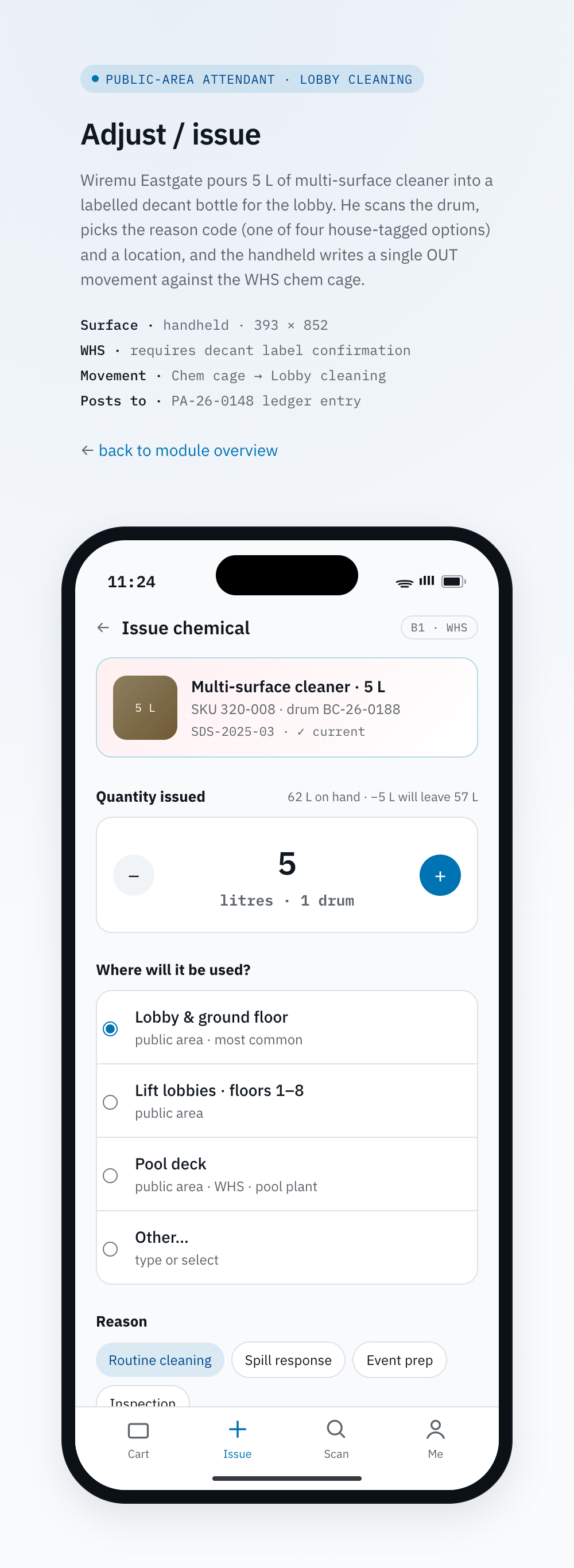 1
2
3
4
1
2
3
4
- 1Action picker — Issue · Write off · Internal use; the wrong choice posts the wrong movement type.
- 2Scan + cost-centre — for chemicals the SDS link surfaces; tap & read before issuing.
- 3Reason & photo — required above A$25 for Write off; reason codes feed the FC's monthly close.
- 4Submit — single-issue ≥ A$50 requires a Supervisor 4-digit PIN; GPS + timestamp are stamped.
When to use
- Consuming chemicals or cloths during a public-area clean (lobby deep-clean, restroom service).
- Writing off a breakage on the spot (broken bottle, spilled chemical).
- Logging internal use (water bottles for a function).
How to use — issue chemicals for a deep clean
- Open the app. PA Home is the default landing screen, with today's area tasks above the action bar.
- Choose action Issue.
- Scan the SKU. For chemicals, the app surfaces the current SDS link — tap and read before continuing.
- Choose the cost-centre (e.g.
Public Areas — Lobby). - Key quantity issued; batch number is auto-suggested by FEFO. Confirm.
- To record a breakage, switch action to Write off and choose reason
BREAKAGE,EXPIRYorDAMAGE. A photograph is mandatory above A$25. - Submit. The OUT or ADJUST movement is posted; the audit trail captures operator, GPS and timestamp.
5.3 Maintenance Technician
Five technicians plus the Chief Engineer carry the handset on the floor. Their day is a queue of work orders — Reactive, PM, Calibration — each touching an asset, drawing parts from MRO consumables and tools from the Tool Crib.
Technician Home — Work Orders
Today's assigned WOs; open and finish on one screen — asset card, parts, tools, photos, labour.
When to use
- At shift start, to pull the WO queue prioritised by SLA breach risk.
- On arrival at an asset, to review the asset card history before starting.
- To check parts out of MRO and tools out of the Tool Crib without leaving the floor.
- To photograph before / during / after and post labour at completion.
How to use
- Open the app — Technician Home shows the WO queue with SLA pill (Reactive · 4h, PM · scheduled, Calibration · due-date).
- Tap a WO. The asset card appears at the top with last 90 days of history; below it, a four-tab sheet — Parts, Tools, Photos, Labour.
- In Parts, scan each MRO consumable as you draw it from the trolley. Each scan posts an
OUTon the C ledger against the WO. - In Tools, scan the tool tag to check out from the Tool Crib — auto-creates a Custody event on the A ledger.
- Travel to the asset, execute the checklist embedded in the WO, photograph before / during / after.
- In Labour, key hours and any sub-tech assist.
- Tap Mark Completed. Return unused parts (scan-in, counter movement) and check tools back in (auto Custody close-out). The WO advances to
Completed; verifier signs off later from the desktop.
5.4 Receiving Clerk
Two clerks on the dock. The persona is single-purpose — scan goods against an open PO, raise variance with photo evidence, post a GRN.
Receiving Home — Scan against PO
Today's open POs at the dock; scan-against-PO, capture batches, raise variance — submit the GRN without leaving the bay.
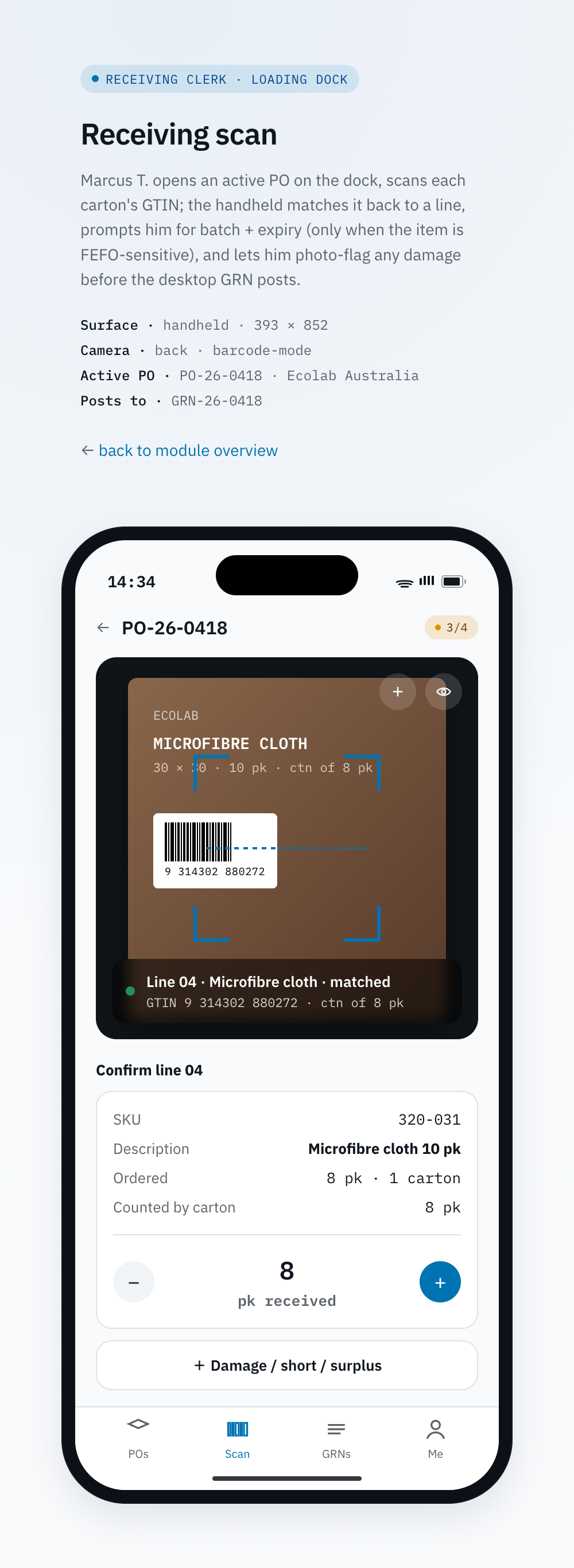 1
2
3
4
1
2
3
4
- 1PO header — supplier & expected delivery, must match the driver's docket before scanning.
- 2Scan target — viewfinder ticks the active line green when fully met.
- 3Batch / expiry capture — required for chemicals & perishables; FEFO & the WHS Register both consume this.
- 4Submit GRN — posts
INmovements and reflects on the desktop Receiving screen within seconds.
When to use
- Receiving a supplier delivery against an open PO at the dock.
- Raising a variance for short / over / damaged shipment.
- Capturing batches and expiry for chemicals and perishables on arrival.
How to use
- Open the app. Receiving Home lists open POs whose expected date is today or earlier.
- Tap the relevant PO; verify the supplier and the driver's docket match the PO header before scanning.
- Scan each carton. The app increments the received quantity and ticks the line green when fully met.
- For batched items, key the batch number, manufacture and expiry dates.
- For any over/short/damage, tap the line, raise a variance and attach a photo of the docket or damage.
- Tap Submit GRN. The desktop Receiving screen reflects the posted GRN within seconds.
5.5 Auditor / Counter
Counters are not a permanent role; supervisors, the FC's clerk and external auditors all share the same Count handset flow. The same screen drives Stock Count (C), Asset Audit (A) and Par Count (R) — the only difference is the domain chip on the count header, which tells the counter which ledger the variance will post to.
Count (mobile)
Assigned counts on the home screen; scan + key; offline queue; the domain chip tells the counter whether the variance posts as C, A or R.
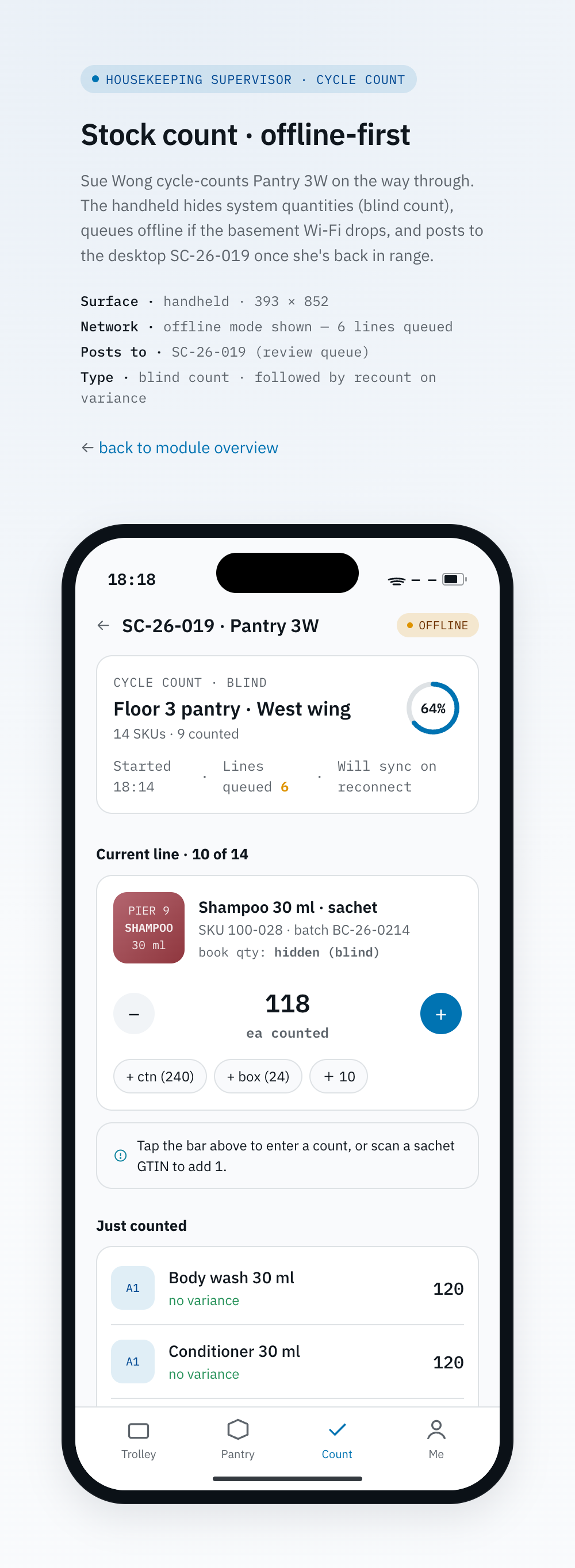 1
2
3
4
1
2
3
4
- 1Count header — count ID, scope (e.g.
Floor 12 Pantry), mode (Blind / Reveal), domain chip C / A / R. - 2Line + keypad — scan the SKU or asset tag, key counted qty; in Blind mode the system on-hand is hidden.
- 3Add line — capture an item not on the sheet; flagged for FC review.
- 4Offline indicator — counts queue locally with idempotency keys; auto-sync & line ticks green on reconnect.
When to use
- Weekly cycle counts of high-movement consumables.
- Quarterly asset audits — scan each tag, confirm location and condition.
- Monthly par counts of linen, CGS and uniforms (§4 Rotable).
- External auditor sample testing — the chip on the header confirms which ledger is being tested.
How to use
- Open the count assigned to you — visible on the app home, badged with the domain chip C / A / R.
- Confirm the header — for an Asset Audit, the device expects asset-tag scans; for a Par Count, linen-tag bundles; for a Stock Count, SKU GTIN.
- For each line, scan and key the counted quantity. In blind mode you do not see the system on-hand.
- If you find an item not on the sheet, tap Add line, scan it, key quantity — the line is flagged for FC review.
- Tap Submit when complete. The desktop Count / Asset Audit / Par Count screen takes the rest of the workflow.
5.6 Universal Scanner & shared components
The single feature that ties every persona together — the universal scanner — plus the three components every screen depends on. These are not separate modules in the app's left navigation; they are reusable surfaces invoked from every persona's home.
Universal Scanner
One viewfinder recognises every machine-readable identifier in Steward and routes to the right action.
When to use
- Quick lookup — scan anything to see what it is and what actions are valid right now.
- Ambiguous input — same package may carry a GTIN and a property batch label; the scanner ranks recognitions.
- Hardware-paired scanning — the dock and the linen sort table both have BLE ring scanners paired to the handset.
How to use
- From any home screen, tap the scanner button (bottom-centre). The viewfinder opens in dark mode to maximise contrast.
- Aim at the code. The scanner recognises one of: SKU GTIN, asset tag, linen tag, PO line, GRN, WO reference, batch ID.
- A recognition badge appears with a domain chip (C / A / R) and the matched record's name.
- Tap the badge to route — SKU lands on Adjust / Issue or Room Card depending on persona; asset tag lands on Asset Detail; linen tag lands on the linen line of the active Room Card; PO line lands on Receiving; WO ref lands on Technician Home.
- If the device is offline, the scan is queued with an idempotency key; routing happens immediately against the local catalogue and the post syncs on reconnect.
- Photo Capture (§5.6 below) is one tap from the recognition badge — every photo is stamped with operator, GPS and timestamp.
Offline Queue. Every persona's handset maintains a single local queue keyed by device ID. Each enqueued post carries an idempotency key derived from operator + screen + payload hash so a retry never double-posts. The queue survives sleep, app restart and device reboot; on reconnect the device walks the queue oldest-first, applies server reconciliation rules, and a green tick lights against each line as the server acknowledges it. A queue depth indicator sits on every persona's home — counters and receiving clerks should not start a new task with more than 50 items pending.
Photo Capture. The same component serves receiving variance, work-order completion, linen reject, asset damage and chemical breakage. Photos are captured at a fixed resolution (1920 × 1080), stamped with operator, GPS coordinate and timestamp, and watermarked with the parent record reference (PO number, WO number, count ID). Photos are required for write-offs above A$25 and for any chemical incident regardless of value. Originals are retained for the same seven-year window as the ledger entry they support.
Trolley Setup tab. Housekeeper trolley replenishment lives as a tab inside the Housekeeper Home (§5.1.1), not as a separate module. The figure below shows the tab in isolation. A Room Attendant brings the trolley to par before going on shift — scan, key remaining, the screen computes the gap, and the picked items post a paired OUT (pantry) + IN (trolley) movement once each item is confirmed.
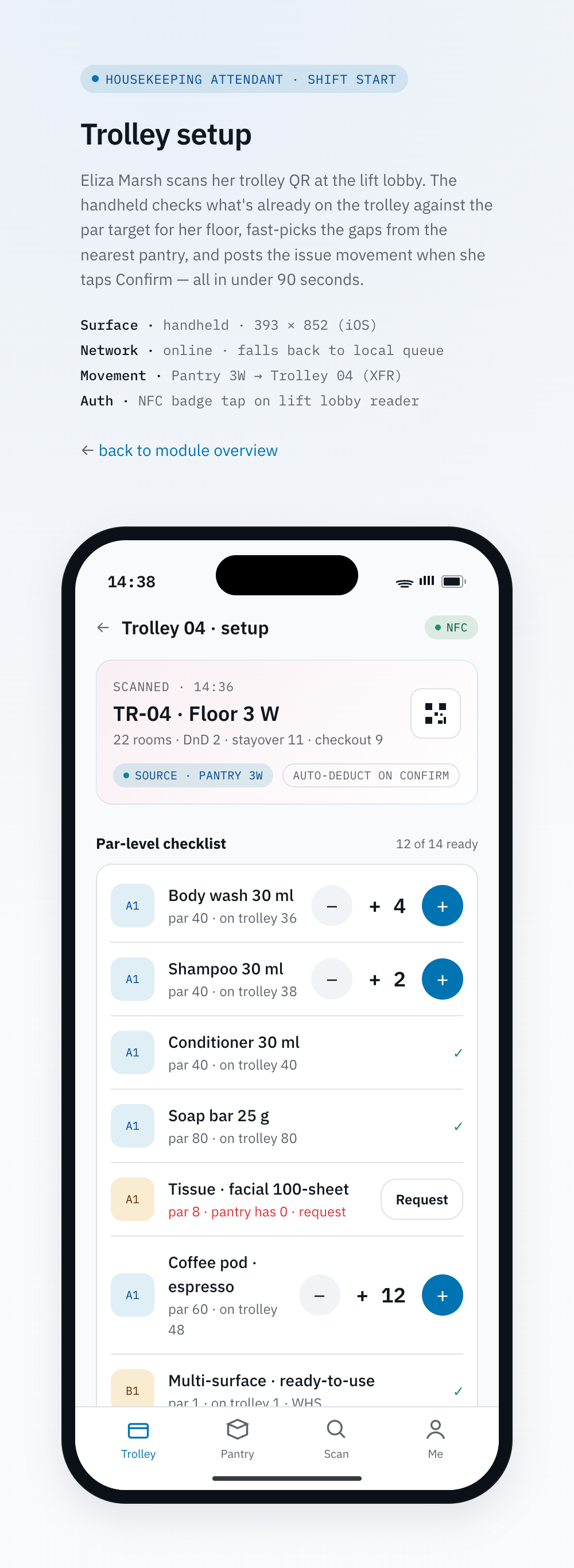 1
2
3
4
1
2
3
4
- 1Trolley header — assigned trolley (e.g.
Trolley 12-A) and shift. - 2Par list — every SKU on the trolley card with target qty & current qty.
- 3Gap-to-par chip — auto-computed delta after each scan / key.
- 4Pick from pantry — posts OUT (pantry) + IN (trolley) once each pulled item is scanned.
6 · Standard operating procedures
These are the recipes that combine multiple screens for the most common operational rhythms. Each recipe follows a fixed shape — trigger, preconditions, steps, outcome, exceptions — so it can be lifted into induction and refresher training without further editing. Roles, screens and the expected duration are stated up-front in the heading.
6.1 Daily opening — Exec Housekeeper · 07:30
Trigger: the start of every operational day; the Exec Housekeeper sets the tone before the supervisors brief their teams.
Preconditions: overnight shift handover note has been read, last night's Activity Feed has settled, Front Office has published the day's arrival / departure pattern.
- Open Dashboard. Acknowledge any critical alerts.
- Open Alerts. Triage each Critical alert: raise PO, initiate transfer, or acknowledge with rationale.
- Open Locations. Walk the tree and confirm no floor pantry is below par.
- Open Batches. Action anything in the 30-day band.
- Open Floor Operations and review the 3-Par compliance bar across all guest floors.
- Brief the supervisors. Hand the day to the team.
Outcome: all critical alerts have been triaged, every floor pantry is at or above par, and each supervisor knows the priorities for their floor. Target time: 25 minutes.
Exceptions:
- Front Office system unavailable — proceed with last-known arrival pattern; reconcile when FO returns.
- An overnight critical alert is unresolved at briefing — the Exec HK keeps it on her watchlist and follows up by 10:00.
6.2 Weekly cycle count — Wednesday afternoon
Trigger: recurring weekly cycle on a rolling top-20%-by-movement scope; off-peak window protects guest experience.
Preconditions: count window agreed with F&B and Engineering (no banquet load-in scheduled), counters trained on the Mobile: Count flow, FC notified so variance review is staffed.
- Exec HK creates a Stock Count with scope By class — Top 20% by movement.
- Two supervisors are assigned. Locations are locked for the count window.
- Counters use Mobile: Count (§5.5.1) with the C chip on the header. Submit when complete.
- FC reviews variances; recount any line above the threshold; posts.
- Any shrinkage above 1.5% is flagged in the weekly HOD meeting.
Outcome: system on-hand for the top-movement scope agrees with physical within the variance threshold; ledger carries one posted Count event per line. Target time: 2 hours including review.
Exceptions:
- Counter loses connectivity in a basement store — submissions queue locally with idempotency keys; sync on reconnect.
- Variance above threshold on a single line — recount; if still over, escalate to the FC for write-off or root-cause investigation.
6.3 Receiving exception — short shipment
Trigger: the dock receives fewer units than the PO line states; the docket and the physical pallet disagree.
Preconditions: Receiving Clerk has the open PO on the Receiving Home screen, the supplier docket is present, photo capture works on the handset.
- Receiving Clerk identifies short quantity at the dock.
- Receive at the actual quantity. Raise the variance with photo of the delivery docket.
- System notifies the Procurement Officer; the PO line stays open against the supplier.
- Procurement contacts the supplier; either a make-good delivery is scheduled, or the PO line is closed and a credit note recorded against the invoice.
- FC reviews variance evidence in the weekly Vendor Reconciliation screen and signs off the credit.
Outcome: the ledger reflects actual physical receipt; the PO either has a follow-up line scheduled or is closed with a credit note attached.
Exceptions:
- Damaged carton mixed with the shortage — split into a
DAMAGEDvariance with separate photo evidence so the supplier scorecard captures both. - Driver refuses to wait for variance to be raised — receive at actual, mark the docket, raise the variance after departure and email the supplier.
6.4 Expiry write-off
Trigger: the Batch & Expiry Tracker flags items expiring in the next 7 days; the Exec HK runs the action workshop weekly.
Preconditions: the WHS Register entries for any affected chemicals are current; redistribution options across floors have been considered.
- From Batches, filter to expired and to-expire-within-7-days.
- For each batch decide: redistribute, internal-consume, or write off.
- Write-offs are posted as
ADJUST · EXPIRYwith photographic evidence per WHS for chemicals. - FC reviews monthly; write-offs are reported in the month-end pack.
Outcome: no expired stock remains in any storage location; the period write-off total is reportable to the FC.
Exceptions:
- A whole batch must be quarantined (product recall) — switch reason to
RECALL; the system blocks further issue of the SKU until cleared. - Chemical disposal requires WHS waste-handling — document the disposal vendor's docket against the write-off line.
6.5 Cross-property transfer
Trigger: a sister property in the group is short of an SKU and Pier 9 holds buffer; or Pier 9 is short and a sister property has surplus.
Preconditions: both properties operate Steward in the same multi-property group; transport between properties is arranged; GST entity status is correctly configured (see §7.6 case 2 or 3).
- Source HK Supervisor or Exec HK initiates from Locations, naming the destination property and location.
- Destination Exec HK / FC approves.
- Pick → ship → receive → reconcile flow follows §4 Transfer. Inter-company GST is posted by the system (§7.6).
- Both properties confirm reconciliation; the source property's ledger posts an OUT, the destination's posts an IN, costed at WAVG.
Outcome: both ledgers agree, GST treatment matches the entity configuration, and the operational shortage is closed.
Exceptions:
- Different legal entities — GST event is posted as a sale at arm's length (see §7.6 case 3); FC of both entities co-signs.
- In-transit shrinkage discovered on destination receipt — raise a variance on the receiving side and reconcile to the source supervisor.
6.6 Cross-domain PO drafting — Procurement Officer
Trigger: a single supplier (typically the engineering MRO supplier or a uniform vendor) delivers items spanning two or all three domains on one consolidated PO — for example MRO consumables (C), a replacement compressor (A) and a new uniform run (R).
Preconditions: the supplier card carries all three domain code mappings, approval thresholds set under §2.5, and item-class permissions for the drafter cover every line being added.
- Open Procurement Hub. New PO → select supplier.
- Add the consumable lines from Purchase Suggestions (C) — body wash bulk refill, filter cartridges, kitchen chemicals.
- Add the asset line (A) — the replacement compressor; tag with the asset class and intended location
ENG-Plant-Roof; this line triggers a capitalisation review. - Add the rotable lines (R) — new uniform shirts and trousers, target par by department.
- The PO now shows a multi-domain composition banner — split totals (C / A / R) and a combined GST line are previewed.
- Submit for approval. Approvals routes to the FC (because the A line crosses the capitalisation threshold) and the Exec HK (because the R lines change a par target).
- Once approved, the PO is sent to the supplier; receiving will split posts on the GRN per domain.
Outcome: one PO, one approval cycle, three correctly-classed GRN posts — consumables to AASB 102, asset to AASB 116 capitalisation, rotable to OS&E pool.
Exceptions:
- The asset line value falls below the A$1,000 PP&E threshold — the system reclassifies the line as a consumable expense (POM under USALI) and removes the capitalisation routing.
- One domain's approval is rejected while others are approved — the PO is held in
Partially Approveduntil the rejected line is removed or revised.
6.7 Work order execution with parts + tools — Maintenance Technician
Trigger: a WO is assigned to the technician — Reactive (guest-reported fault) or PM (scheduled on the asset's PM calendar).
Preconditions: WO carries an asset link, the technician has permissions for the asset class, the Tool Crib has the tools the WO checklist calls for, MRO consumables are on hand.
- Open Engineering Workbench (desktop) or Technician Home (mobile, §5.3.1).
- Review the asset card history — last 90 days of WOs, parts consumed, meter readings.
- Pick parts from MRO consumables — scan each draw; the system posts
OUTmovements on the consumable SKUs against the WO reference. - Check out tools from the Tool Crib — scan each tool tag; the system posts a Custody event on the A ledger.
- Travel to the asset. Execute the checklist.
- Photograph before / during / after with the Photo Capture component (§5.6).
- Record labour hours and any sub-tech assist.
- Mark the WO
Completed. Return tools (scan-in, auto Custody close-out) and any unused parts (counter movement reversing the OUT).
Outcome: the WO advances to Completed, the C ledger carries OUT rows for parts actually consumed, the A ledger has a Custody Out and a Custody Back for each tool, labour is recorded, and the asset's history is enriched with the photo set.
Exceptions:
- Required part is out of stock — mark WO
On Holdand raise a parts request; the system pushes a Purchase Suggestion to Procurement. - Asset condition is worse than expected — upgrade WO priority, add a photo, and engineering management is notified within the minute.
- Tool damaged in use — return the tool with a Damage note; the Tool Crib custodian raises a separate WO against the tool itself.
6.8 Floor replenishment — HK Supervisor
Trigger: a floor walk-through identifies multiple pantry items below par AND a 3-Par compliance bar below 80% on the same floor.
Preconditions: read access on Floor Operations work centre, write access on Transfer, central store and sister-floor stocks are visible.
- Open Floor Operations → select the floor in question.
- Review the consumable par gaps (C panel) and the 3-Par compliance bar (R panel).
- Click Replenish floor. The system drafts auto-suggested cross-domain transfers — typically one consumable transfer from the central store plus one rotable replenish dispatch from a sister floor or storage.
- Review the suggested quantities; adjust where local knowledge differs from the par template.
- Submit. Both transfers move to
Requested. - Source location approver (Exec HK for floor-to-floor, Central Store custodian for store-to-floor) reviews and approves.
- Pick, ship and receive on each transfer; the C and R ledgers post their respective movement pairs.
Outcome: the floor's pantries return to par by end of shift; the 3-Par compliance bar moves back into the green; one Approval action covered both domains.
Exceptions:
- Source location is also short — switch to a sister floor or the central store; if no source has stock, raise a Replenishment PO suggestion.
- Rotable not in storage anywhere on property — log a Loss event with reason
POOL SHORTand trigger a Replenishment PO; the FC tracks pool size drift.
6.9 Linen monthly count + loss write-off — Executive Housekeeper
Trigger: month-end approaches; SOP 6.10 (Month-end close) depends on this completing.
Preconditions: 3-Par circulation view shows current pool size, the laundry vendor (SwiftLine) has reconciled the last laundry cycle, two counters available for the count window.
- Open Rotable → Par Count; create count scope = all linen SKUs.
- Freeze laundry dispatches for the count window; SwiftLine is notified.
- Distribute Mobile: Count (§5.5.1) scopes to the two counters — one for Storage, one for In-Use sample on a representative floor.
- Counters scan / count each bundle and submit; offline queue applies as needed.
- Variances above the threshold trigger a recount.
- Posted variance becomes a Loss event with reason code (
STAINED/TORN/WORN/LOST/GUEST). - Review aggregate Loss; post the monthly OS&E amortisation journal that closes out unrecoverable losses against Schedule 5.
Outcome: pool size is reconciled to physical, the monthly OS&E amortisation journal is posted, the CPOR linen denominator is confirmed for the period.
Exceptions:
- Cross-property pool sharing in the group — reconcile against the sister property's count first; the system flags mismatched bundle IDs.
- Laundry vendor count disagrees with the property count — schedule a joint reconciliation before posting the journal; do not unfreeze dispatches until resolved.
6.10 Month-end close — FC · last business day + 2
Trigger: calendar month-end; the FC consolidates the period and locks the books.
Preconditions: SOPs 6.2 (cycle count), 6.4 (expiry write-off) and 6.9 (linen count) for the period are complete and posted; all GRNs are matched against supplier invoices.
- Confirm all Counts in the month are
Postedacross all three domains (Stock Count C, Asset Audit A, Par Count R). - Confirm all GRNs in the month are matched against invoices (three-way match).
- Confirm all expiry write-offs and rotable loss write-offs for the month are posted.
- Open Finance Close work centre. The FC consolidates the three journal sets — AASB 102 (Consumables — Weighted Average inventory valuation), AASB 116 (Assets — depreciation, additions, disposals) and USALI Schedule 5 (Rotable — OS&E amortisation pool).
- Run the Month-end pack: inventory value reconciled to the GL inventory account, asset register reconciled to the PP&E register, OS&E pool reconciled to the Schedule 5 control account.
- Generate the BAS pack for the quarter where applicable (see §7.6).
- Lock the month — any further movements dated within the locked period require GM approval.
Outcome: the month is locked across all three domains, the three accounting frameworks are reconciled in one Finance Close pack, and the GL is ready for the auditor sample.
Exceptions:
- An unmatched invoice blocks the close — investigate three-way match exceptions before locking; if unresolved beyond the deadline, accrue the invoice and document in the close pack notes.
- A material variance between system inventory value and physical (above 2%) — block lock; trigger a recount and root-cause analysis.
7 · Compliance & audit
7.1 AASB 102 — inventory valuation
Inventory is measured at the lower of cost and net realisable value. Cost is determined using the Weighted Average method (default) or FIFO where elected at item creation. Steward recomputes the weighted average automatically after every IN movement; FIFO items maintain a per-batch cost layer.
For audit support, the Movement Ledger acts as the immutable transaction record. Sample testing can be drawn from Movements with filters by date, type, operator and value, and exported as PDF or XLSX with a system-generated checksum.
7.2 WHS Hazardous Chemicals Register
Steward maintains the manifest required by WHS Regulation §349 in the WHS Chemical Register screen. Each entry carries SDS version & expiry, GHS pictograms, storage location, responsible officer, quantity range and consultation evidence. An SDS past its expiry hard-blocks issue of the affected chemical.
Annual self-audit checklist:
- Walk every storage location and verify the physical state matches the register.
- Verify every chemical's SDS is current (within publisher review cycle).
- Verify consultation records (toolbox talks) are within 12 months.
- Run the Export manifest button — file the PDF on the property's WHS share.
7.3 AASB 116 — Property, Plant & Equipment
Items in the Assets domain are recognised as PP&E under AASB 116 ¶6–7 when they are held for use in the supply of services, expected useful life is greater than 12 months, cost can be measured reliably, and unit cost is greater than or equal to A$1,000 — the Pier 9 capitalisation threshold. Sub-threshold items are expensed at the point of issue to USALI Schedule 9 (POM) or Schedule 11 (A&G) depending on class, and are not tracked individually as PP&E.
Steward assigns each asset class a useful life and a default depreciation method at item-master creation time. The FC can override on a per-asset basis with written justification recorded against the asset card.
| Asset class | Useful life | Method |
|---|---|---|
| Engineering plant (HVAC, lift, chiller) | 180–240 months | Straight-line |
| IT (server, network, switching) | 36–60 months | Reducing balance 30% |
| FF&E (bed, sofa, fridge) | 84–120 months | Straight-line |
| Tools (manual + powered) | 36–60 months | Straight-line |
| Loanables (cribs, hairdryers, irons) | 24–48 months | Straight-line |
| Uniforms | 12–36 months | Straight-line |
Depreciation method (¶43–62). Straight-line is the platform default; reducing balance is permitted for IT only and requires FC sign-off on first election. A method change after initial recognition requires FC approval and is documented as a change in accounting estimate.
Disposal (¶67–72). Derecognition is triggered by one of four lifecycle events on the asset state machine — Retire, Sell, Scrap or Donate. Gain or loss is computed as (proceeds − net book value) and is auto-posted to USALI Schedule 9 (POM) or Schedule 11 (A&G) according to the asset's class.
Impairment review (¶63). A review is triggered when an asset's condition is downgraded to Poor on the asset card, when an insurance claim is registered against the asset, or annually for high-value plant. If recoverable amount falls below NBV, an impairment loss is posted and the carrying value is written down.
7.4 USALI 11th Edition Schedule 5 — OS&E Amortisation Pool
The OS&E pool — Operating Supplies & Equipment — covers linen (sheets, towels, bath mats, table linen, napkins), china/glass/silver (CGS) and uniforms where they are reusable across many service cycles but carry a measurable monthly loss to laundry attrition, breakage, theft and wear. Pier 9 tracks these as Rotable, the third Steward domain.
Why not AASB 116. Per-unit asset tagging is impractical at the pool's granularity — 17,000 linen bundles, 12,000 plates, 4,000 glasses. The economic loss is dominated by laundry attrition and small breakages, not by the classical depreciation curve that AASB 116 contemplates. The Australian profession accepts pool amortisation under Schedule 5 as the appropriate treatment.
Why not AASB 102. Pool items are not expensed on issue — they remain in service through many guest cycles. Expensing on issue would understate the asset base and overstate Cost of Sales in the issue period.
Steward's treatment. Each month the platform computes period amortisation as (Replacement cost − Loss cost − Net new purchases) over the pool. The journal is posted via Rotable → OS&E Amortisation; Schedule 5 hits Cost of Sales — Rooms, F&B or Spa depending on which department's pool absorbed the loss.
Pier 9 standard amortisation periods. Linen — 24 months; CGS — 36 months; Uniforms — 12 to 24 months depending on department wear pattern. Re-baselining the period requires FC sign-off and is documented as a change in accounting estimate.
7.5 Audit trail — what the auditor sees
The cross-domain ledger is the auditor's primary surface. Every entry — irrespective of domain — carries the same superset of fields, with domain-specific fields populated only when relevant.
- Every ledger row (consumable, asset custody, rotable circulation) carries:
id · domain · event_type · qty · unit_cost · batch_id · asset_tag · linen_tag · from_state · to_state · from_loc · to_loc · reason · operator · timestamp · ip · ref_doc. Fields not applicable to a given domain arenullbut the column exists. - Every state transition on PO / Count / Transfer / Alert / WO / Asset lifecycle / Loanable / Linen unit:
state_from → state_to · operator · timestamp · ip. - Every Item Master change: full field-level diff with operator and timestamp. Item Master deletion is prevented by the system — to protect the ledger's referential integrity, items are deactivated (
active = false), never removed. - Every WHS Register change: SDS version history with attachments retained.
- Every photograph captured via §5.6 Photo Capture: stamped with operator, GPS coordinate and timestamp, watermarked with the parent record reference (PO / WO / count ID).
Retention is seven years from the last activity on the record, in line with Australian record-keeping obligations under the Corporations Act and the ATO's record-keeping rules. The system enforces this floor; deletion within the window is prevented.
7.6 GST handling
Pier 9 operates under the Australian GST regime — 10% on most supplies, with exemptions for specific categories (e.g. basic food where applicable). Inter-property transfers within a multi-property group can be at arm's-length or below cost; both have GST implications that the platform handles distinctly.
Steward's three cases.
- Single-property procurement. The supplier's GST is captured on the GRN line at invoice match. Input GST flows into the property's BAS as a credit; the underlying expense is posted net of GST to the relevant USALI schedule.
- Inter-property transfer (same legal entity). No GST event — the transfer is a cost-centre allocation between two properties under the same ABN. The system posts an internal allocation only.
- Inter-property transfer (different entity in the same group). Full GST event. The system treats the transfer as a sale from the source entity to the destination entity at market rate, posts both legs automatically — source entity raises a tax invoice, destination entity records input GST — and reconciles the inter-company control account.
Quarterly BAS export. From the Finance Close work centre the FC runs the BAS pack — GST input and output by tax code, FB2 / FB4 fringe-benefit deferrals where applicable, capital acquisitions for the period — and exports the pack to the property's general ledger system. Steward ships connectors for Xero, MYOB and Infor SUN; CSV export is available for any other GL.
7.7 USALI mapping
Every Item Master record carries a USALI departmental schedule code. Consumption reports group by this code so the FC's expense allocation ties cleanly into the schedule-by-schedule P&L. Common codes used at Pier 9:
| USALI | Steward class | Typical items |
|---|---|---|
| Schedule 3 — Rooms | Amenities · Cleaning · Linen consumables | Body wash, hand cream, slippers, cleaning sprays |
| Schedule 4 — F&B | Minibar food · Beverage · Coffee | Snacks, soft drinks, capsules |
| Schedule 5 — OS&E pool | Linen · CGS · Uniforms (Rotable) | Bath towels, dinner plates, F&B uniforms |
| Schedule 9 — POM | Engineering consumables & sub-threshold tools | Light bulbs, filters, lubricants, hand tools |
| Schedule 11 — A&G | Office consumables & sub-threshold IT | Stationery, printer toner, low-cost peripherals |
A · Appendix
A.1 Glossary
- 3-Par
- The rotable circulation model — one set in use, one in laundry, one in storage. The 3-Par compliance bar indicates the percentage of SKUs whose pool size meets the target ratio.
- Amortisation
- Periodic write-down of the OS&E pool's net cost across its service life. Posted via Rotable → OS&E Amortisation against USALI Schedule 5.
- Asset Tag
- The unique identifier (typically a QR or barcode label) physically attached to an asset; the system uses the tag to identify the asset across all custody, audit and WO events.
- CGS
- China / Glass / Silver — the F&B sub-pool of OS&E. Tracked as Rotable under USALI Schedule 5.
- CPOR
- Cost Per Occupied Room. Consumption value ÷ occupied rooms in the period.
- Custody
- An Asset-domain event indicating the asset has changed custodian (e.g. tool checked out to a technician). Logged on the A ledger; does not change ownership.
- Domain chip
- The one-letter coloured chip — C · A · R — that surfaces the domain of any SKU, movement, alert or count.
- FEFO
- First Expired First Out — pick rule for batched items.
- GRN
- Goods Received Note — the document raised on Receiving.
- GTIN
- Global Trade Item Number — the barcode on supplier packaging.
- Idempotency key
- A unique key derived from operator + screen + payload hash, attached to every mobile post. A retry of the same payload — manual or automatic on reconnect — never double-posts.
- Item class
- The
item_classfield on every Item Master record — one ofCONSUMABLE,ASSET,ROTABLE. The detail page renders tabs dynamically from this field. - Laundry cycle
- The Rotable circulation from
In Use → Soiled → In Laundry → In Storage; the number of cycles before pool replacement drives Schedule 5 amortisation. - MOQ
- Minimum Order Quantity — supplier-enforced floor for an order line.
- NBV
- Net Book Value — an asset's cost less accumulated depreciation. Compared against recoverable amount on impairment review.
- OCR
- Occupied Room — a room sold for the night, used as the denominator for CPOR.
- OS&E
- Operating Supplies & Equipment — the linen, CGS and uniform pool tracked as Rotable and amortised under USALI Schedule 5.
- Par
- The target on-hand level for a SKU at a location. Used by Trolley Setup, Floor Operations and the Replenish workflow to compute the gap.
- PM
- Preventive Maintenance — scheduled work order against an asset's PM calendar; one of three WO types alongside Reactive and Calibration.
- POM
- Property Operations & Maintenance — USALI Schedule 9.
- ROP
- Reorder Point — the on-hand level at which a new order should be raised.
- SDS
- Safety Data Sheet — the manufacturer document for a hazardous chemical. SDS expiry hard-blocks issue of the affected SKU.
- SDS expiry
- The date by which the manufacturer's SDS must be reviewed and reissued. The WHS Register hard-blocks issue of any SKU whose SDS has expired.
- SKU
- Stock Keeping Unit — Steward's internal identifier for an item.
- Useful life
- The period over which an asset is depreciated under AASB 116; set on the asset class with FC sign-off for per-asset overrides.
- USALI
- Uniform System of Accounts for the Lodging Industry, 11th Edition.
- WAVG
- Weighted Average — Steward's default costing method, recomputed after every receipt.
- WHS Class
- The WHS hazard classification recorded against a chemical SKU — drives storage, signage and operator training requirements.
- WO
- Work Order — the unit of engineering work; one of Reactive, PM or Calibration; lives on the Engineering Workbench desktop and Technician Home mobile.
A.2 State machine reference
The eight state machines that drive Steward. Each transition is recorded with operator, timestamp and IP; off-path transitions are rejected with a permission error. See §3.10 for the canonical specification.
1 · Purchase Order (all domains — drives the supplier-facing procurement cycle)
2 · Count / Asset Audit / Par Count (unified count workflow; the domain chip selects the ledger the variance posts to)
3 · Stock Transfer (Consumables, Rotable — drives intra- and inter-property movement)
4 · Alert (all domains — the workspace inbox)
5 · Asset lifecycle (Assets domain — owned PP&E from acquisition to disposal)
6 · Loanable item (Assets domain — cribs, irons, wheelchairs, AV — Room 360 issues against this)
7 · Work Order (Assets domain — Reactive / PM / Calibration; Engineering Workbench owns the desktop)
8 · Linen unit cycle (Rotable domain — drives the 3-Par circulation; Loss events fork from In Use / Soiled)
A.3 Status reference
| Colour | Meaning | Where you see it |
|---|---|---|
| Blue | In progress / current step | Stepper, Active alert |
| Green | Success / on-target / resolved | PO Received, Alert Resolved |
| Amber | Warning — action recommended | Below par, Warning alert |
| Red | Danger / out of stock / critical | OOS alert, Critical variance |
| Violet | Escalated / management attention | Escalated alert, GM-approval needed |
| Grey | Inactive / closed / cancelled | Closed PO, Cancelled transfer |
A.4 Keyboard shortcuts (desktop)
| Shortcut | Action |
|---|---|
| ⌘K | Open command palette — jump to any screen or SKU |
| G then D | Go to Dashboard |
| G then A | Go to Alerts |
| G then R | Go to Receiving |
| G then I | Go to Items |
| G then F | Go to Floor Operations |
| G then C | Go to Compliance Centre |
| G then W | Go to Engineering Workbench |
| A | Open the Approvals queue |
| N | New item / PO / Count (context-aware) |
| / | Focus the search field on the current screen |
| ⌘Enter | Submit the current form |
| Esc | Close the current drawer or modal |
A.5 Change log
| Version | Date | Author | Notes |
|---|---|---|---|
| v1.0 | 01 Jun 2026 | Office of the GM | Initial release covering all 19 module screens. |
A.6 Cross-domain ledger entry sample
Every row of the cross-domain ledger follows the same schema; fields not applicable to a given domain are null. Three sample rows below — one per domain — illustrate how a consumable issue, an asset custody change and a rotable laundry dispatch appear side by side.
{
  "id":          "MV-26-0000123",
  "domain":      "C",
  "event_type":  "OUT",
  "sku":         "AMN-BWS-300",
  "qty":         -12,
  "unit_cost":   2.45,
  "batch_id":    "BWS-2026-04-LOT07",
  "asset_tag":   null,
  "linen_tag":   null,
  "from_state":  null,
  "to_state":    null,
  "from_loc":    "TRL-12-A",
  "to_loc":      "RM-1203",
  "reason":      "ROOM_TURN",
  "operator":    "AMA.NGUYEN",
  "timestamp":   "2026-05-26T08:42:11+10:00",
  "ip":          "10.42.7.118",
  "ref_doc":     "ROOM-CARD-1203-2026-05-26"
}

{
  "id":          "CUS-26-0000457",
  "domain":      "A",
  "event_type":  "CUSTODY_OUT",
  "sku":         null,
  "qty":         1,
  "unit_cost":   null,
  "batch_id":    null,
  "asset_tag":   "WRC-0042",
  "linen_tag":   null,
  "from_state":  "In Storage",
  "to_state":    "In Custody",
  "from_loc":    "ENG-Tool-Crib",
  "to_loc":      "USR.K.WONG",
  "reason":      "WO_DRAW",
  "operator":    "K.WONG",
  "timestamp":   "2026-05-26T09:14:33+10:00",
  "ip":          "10.42.5.207",
  "ref_doc":     "WO-26-0312"
}

{
  "id":          "LIN-26-0001821",
  "domain":      "R",
  "event_type":  "LAUNDRY_DISPATCH",
  "sku":         "LIN-BWL-70",
  "qty":         -18,
  "unit_cost":   null,
  "batch_id":    null,
  "asset_tag":   null,
  "linen_tag":   "LB-26-04-0918..0935",
  "from_state":  "Soiled",
  "to_state":    "In Laundry",
  "from_loc":    "FL-03-Pantry",
  "to_loc":      "VND-SwiftLine",
  "reason":      "CYCLE_DISPATCH",
  "operator":    "HK.SUP.M.PATEL",
  "timestamp":   "2026-05-26T11:02:55+10:00",
  "ip":          "10.42.3.044",
  "ref_doc":     "LIN-DISP-26-1821"
}